Why Is My Mic Not Working? How to Fix a Microphone on Windows 11 and 10
Mic not working on Windows? Check microphone privacy access first, then the input device, the input volume, the recording troubleshooter and the audio driver.
By PC MomentUpdated 6 min read
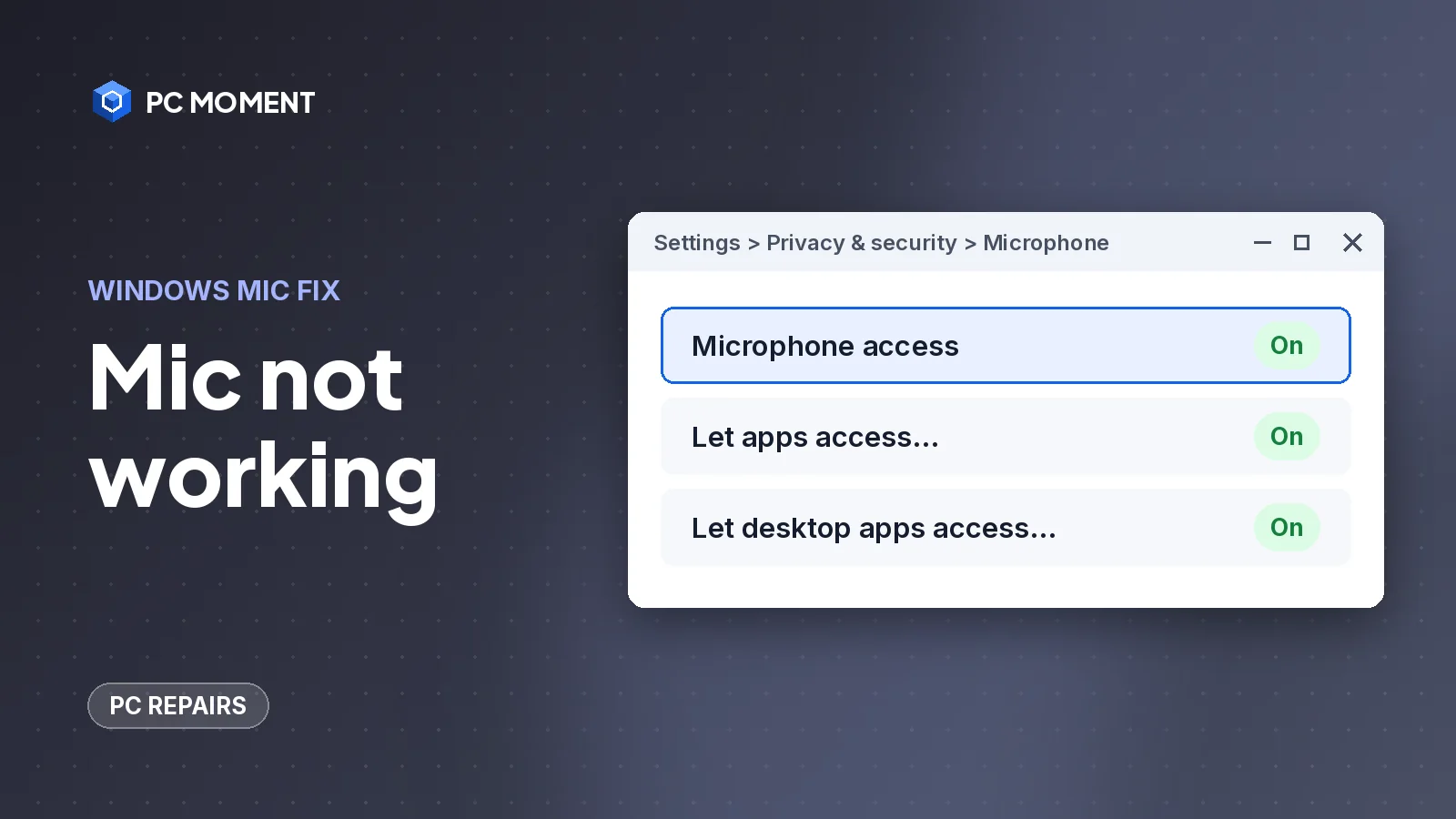
If your mic isn’t working on Windows, the most common reason is that apps aren’t allowed to use it. Windows has a microphone privacy switch, and after an update you may need to turn access on again. Check that first, then make sure the right microphone is selected and its input volume isn’t at zero.
The steps below cover Windows 11 and Windows 10, with the Windows 10 menus noted where they differ. Test your mic after each fix.
What causes a microphone to stop working?
- Microphone access is off. Windows can block every app, or only desktop apps, from using the mic.
- The wrong input device is selected. A webcam mic, a headset and a laptop’s built-in mic can all be listed, and Windows uses only one as the default.
- The mic is muted or too quiet. A mute button on the headset or a low input volume makes it seem dead.
- Connection problems. A loose plug, the wrong jack or a Bluetooth headset that’s paired but not connected.
- Driver problems. If Windows doesn’t detect the mic at all, the audio driver may need a reinstall.
How to fix a mic that’s not working
| Fix | When it helps |
|---|---|
| 1. Microphone privacy settings | No app can hear you, or the problem started after an update |
| 2. Mute button and connection | Headset or USB mic, nothing registers |
| 3. Choose the input device | Several mics are connected |
| 4. Test the mic and raise the volume | People say you’re too quiet |
| 5. Check the app’s own settings | The mic works in one app but not another |
| 6. Recording audio troubleshooter | You’re not sure where the problem is |
| 7. Bluetooth headset checks | Wireless headset mic is silent |
| 8. Reinstall and update the audio driver | Windows doesn’t detect the mic at all |
Fix 1: Turn on microphone access
On Windows 11:
- Select Start > Settings > Privacy & security > Microphone.
- Make sure Microphone access is on.
- Make sure Let apps access your microphone is on, then choose which apps can use it. Desktop apps don’t appear in this list.
- Turn on Let desktop apps access your microphone so programs like Zoom, Discord or a browser can use it.
You can also jump straight to this page. Press Windows + R, type the following and press Enter:
ms-settings:privacy-microphoneOn Windows 10, go to Start > Settings > Privacy > Microphone, select Change and turn on Allow apps to access your microphone. Then turn on Allow desktop apps to access your microphone.
Note: If the microphone is built into your webcam, Microsoft says apps may also need camera permission. Check Settings > Privacy & security > Camera (Windows 10: Settings > Privacy > Camera) as well.
Fix 2: Check the mute button and the connection
- If your headset has a Mute button or switch, make sure it isn’t active.
- Check that the plug is all the way in. On a desktop with separate jacks, the mic goes in the microphone input, not the headphone output.
- For a USB mic or headset, unplug it and try another USB port.
- Make sure the microphone is positioned correctly, close to your mouth and pointed the right way.
If a piece of plug broke off inside the jack, see how to get a broken headphone jack out before you plug anything else in.
Fix 3: Choose the right input device
On Windows 11:
- Select Start > Settings > System > Sound.
- Under Input, go to Choose a device for speaking or recording and select your microphone.
On Windows 10, go to Start > Settings > System > Sound and pick your microphone under Choose your input device.
To open the Sound page directly, press Windows + R and run:
ms-settings:soundFix 4: Test the microphone and raise its volume
On Windows 11:
- In Settings > System > Sound, select the > next to your microphone under Input to open its properties.
- Under Input settings, select Start test and speak normally.
- Select Stop test, then Play to hear the recorded sample.
- Move the Input volume slider up if you sound too quiet.
On Windows 10, select Device properties under your input device. On the Levels tab, adjust the Microphone and Microphone Boost sliders and select OK. Then speak and watch Test your microphone: if the bar moves, Windows hears you.
Tip: If the test works but people still can’t hear you, Windows is fine and the problem is in the app. Go to Fix 5.
Fix 5: Check the app’s own microphone setting
Most calling and recording apps have their own audio settings where you pick a microphone. If the app is set to a different device than the one you’re speaking into, it stays silent even when Windows hears you. Open the app’s audio or device settings and select the same microphone you picked in Fix 3.
Fix 6: Run the recording audio troubleshooter
On Windows 11:
- Go to Settings > System > Sound.
- Scroll down to Advanced. Under Troubleshoot common sound problems, choose Input devices.
- Follow the prompts.
You can also open the Get Help app, search for audio troubleshooter, select Yes if asked to run diagnostics, and follow the steps.
On Windows 10, go to Settings > Update & Security > Troubleshoot > Additional troubleshooters and run Recording Audio.
Fix 7: Fix a Bluetooth headset mic
- Turn the headset off and back on, and make sure it’s charged and close to the PC.
- Go to Start > Settings > Bluetooth & devices and check that Bluetooth is on and the headset shows as connected.
- Select the headset as the input device in Settings > System > Sound (Fix 3).
- Still silent? In Bluetooth & devices > Devices, select More options next to the headset, choose Remove device > Yes, then pair it again.
- Run the Bluetooth troubleshooter: Settings > System > Troubleshoot > Other troubleshooters, then Run next to Bluetooth.
Fix 8: Reinstall and update the audio driver
If Windows doesn’t detect the microphone at all, reinstall the audio drivers.
Important: Save your work first, because this fix needs a restart. On Windows 10 the checkbox is called Delete the driver software for this device.
- Right-click Start and select Device Manager.
- Expand Sound, video and game controllers.
- Right-click your audio device and select Uninstall device.
- Check Attempt to remove the driver for this device and select Uninstall. Repeat for any other audio devices listed.
- Restart your computer. Windows tries to reinstall the audio devices and drivers automatically.
- If it doesn’t, open Device Manager again, right-click Sound, video and game controllers and select Scan for hardware changes.
- After the restart, right-click your audio device and select Update driver > Search automatically for drivers.
If Windows finds nothing newer, get the audio driver from your PC or motherboard maker’s website. Microsoft advises against downloading drivers from any other sites.
If it still doesn’t work
- Try the mic on another device. If it fails on a phone or another PC too, the microphone or its cable is the problem.
- Try a different mic on this PC. If a second headset works, your PC is fine and the first mic is faulty.
- Rule out a wider audio problem. If your speakers are silent as well, start with our guide to sound not working on Windows 11.
- Check your Windows version. Menu names differ between Windows 10 and 11. Our guide on how to check your Windows version shows how to find out which one you have.
- Get help. If no microphone works after a clean driver reinstall, the jack or onboard audio may be faulty. Your PC maker’s support or a repair shop can test it. For more general advice, see our computer repair tips and the PC repairs section.
Frequently asked questions
Why is my mic not working in one app but working in others?
Usually the app doesn't have permission or is set to the wrong microphone. Check Settings > Privacy & security > Microphone, turn on access for that app (or Let desktop apps access your microphone for desktop programs), then pick the right mic in the app's own audio settings.
Why did my microphone stop working after a Windows update?
Microsoft notes that after an update you may need to give apps permission to use the microphone again. Check the microphone privacy settings first, then reinstall or update the audio driver in Device Manager.
How do I test my microphone in Windows 11?
Go to Settings > System > Sound, select your microphone under Input, then select Start test under Microphone test and speak. Select Stop test and play back the recorded sample to hear how it sounds.
My headset mic works on my phone but not on my PC. What should I check?
Make sure the headset's mute button is off, the headset is connected or paired with the PC, and it's selected as the input device in Settings > System > Sound. A Bluetooth headset must show as connected, not just paired.
Can I turn off microphone access for one desktop app?
No. Microsoft says you can't turn off microphone access for individual desktop apps. You can only choose individual apps from the Microsoft Store list, and turn desktop app access on or off as a group.
Related guides
PC Repairs
Sound Not Working on Windows 11? 10 Fixes That Bring Audio Back
No sound on Windows 11? Check the output device first, then work through the troubleshooter, audio services and driver fixes in order.
7 min read
PC Repairs
Wi-Fi Not Working on Your Laptop? How to Fix It on Windows 11 and 10
Laptop Wi-Fi not working? Check airplane mode and the Wi-Fi switch, then reset the network stack, the adapter driver and your router, in that order.
7 min read
PC Repairs
Second Monitor Not Detected? How to Fix It in Windows 11 and 10
Windows not detecting your second monitor? Check the cable and input source, press Windows + P, use Detect in Display settings, then reset or roll back the graphics driver.
7 min read
PC Repairs
Why Is My Printer Offline? How to Get It Back Online in Windows 11 and 10
Windows shows a printer as offline when it can't talk to it. Restart the printer, check the network, then clear the queue and restart the Print Spooler.
7 min read