How to Check Windows Version: Edition, Version, Build and 32 or 64-Bit
Check which Windows you have in seconds with winver, Settings > System > About or systeminfo, and learn what edition, version and OS build mean.
By PC MomentUpdated 5 min read
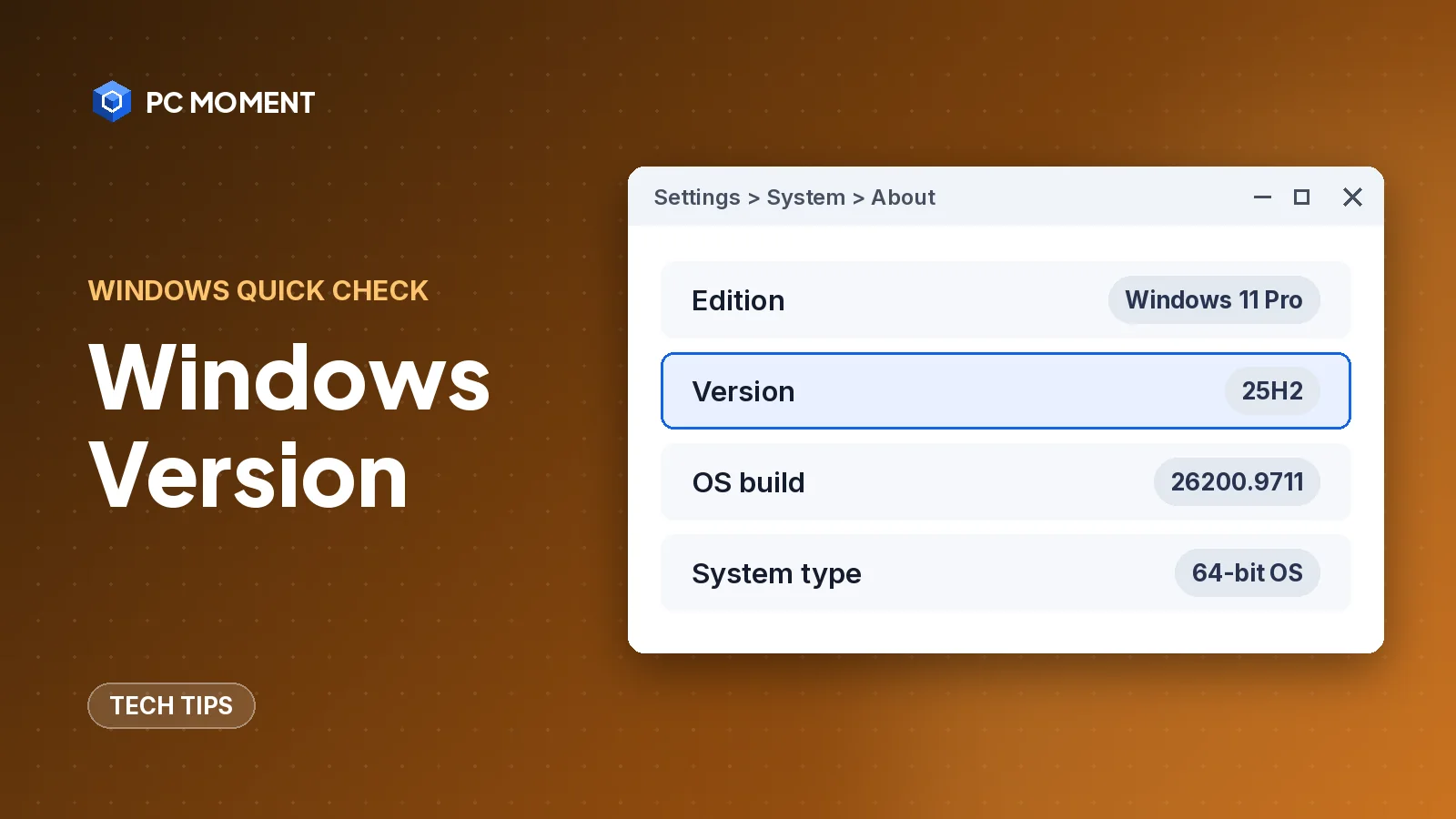
The quickest way to check your Windows version is to press Windows key + R, type winver and press Enter. A small About Windows window opens with your version (such as 25H2) and OS build number. For the edition and whether Windows is 32-bit or 64-bit, open Settings > System > About.
You’ll need these details when a program lists system requirements, when IT support asks what you’re running, or when you’re not sure whether a PC has Windows 10 or Windows 11. Below are four ways to find them, plus how to read what you see.
Edition, version and build: what each one means
Windows describes itself with several labels, and each answers a different question:
| Label | Example | What it tells you |
|---|---|---|
| Edition | Windows 11 Home, Windows 11 Pro | Which product you have; Pro and Enterprise add business features |
| Version | 24H2, 25H2 | Which feature update is installed (year + first or second half) |
| OS build | 26200.9711 | The exact release; the number after the dot goes up with monthly updates |
| System type | 64-bit operating system | Whether Windows is 32-bit or 64-bit |
Microsoft names Windows 11 feature updates with a YYHX pattern: YY is the two-digit year and H1 or H2 is the half of the year it shipped. So 25H2 is the update from the second half of 2025.
Method 1: Run winver (fastest)
- Press Windows key + R to open the Run box.
- Type
winverand press Enter. - Read the version and OS build in the About Windows window, then select OK to close it.
You can also type winver in the search box on the taskbar and press Enter, or run it from a Command Prompt window. Microsoft’s own developer documentation recommends this as the quick way to check the OS build number on any device.
Method 2: Settings > System > About (most detail)
- Select Start > Settings > System.
- Scroll down and select About.
- Under Windows specifications, read Edition, Version and OS build.
- Under Device specifications, check System type to see whether Windows is 32-bit or 64-bit.
This is the only method here that shows the edition, version, build and 32/64-bit status on one page.
Tip: Right-clicking Start opens a menu with Settings in it, which saves a couple of clicks. The same About page works on Windows 10 and Windows 11.
Method 3: Use systeminfo in Command Prompt or PowerShell
If you prefer the command line, or need the result as text you can copy into a support ticket, use the built-in systeminfo command. It doesn’t need admin rights. Open Command Prompt (our list of Command Prompt shortcuts covers quick ways to open it) and run:
systeminfo | findstr /B /C:"OS Name" /B /C:"OS Version"systeminfo collects details about the operating system and hardware, and findstr filters the output down to the two lines that start with OS Name and OS Version. Microsoft documents that this exact command works in both Command Prompt and PowerShell.
To see everything systeminfo reports, including the installed RAM and network cards, run it on its own:
systeminfoTo get the result as a list you can paste somewhere:
systeminfo /fo listThe /fo option sets the output format; it also accepts table and csv.
Method 4: System Information (msinfo32)
- Press Windows key + R.
- Type
msinfo32and press Enter. - The System Information window opens with version details for your device.
You can also run msinfo32 from a Command Prompt window. System Information is handy when you’re already digging into other details about the PC.
How to tell Windows 10 from Windows 11
Windows 11 still uses internal version numbers that start with 10.0 (Microsoft’s Windows SDK for Windows 11 24H2 is numbered 10.0.26100, for example), so a “10.0” somewhere doesn’t mean you have Windows 10. The reliable way to tell them apart is the OS build number from winver or the About page:
| OS build starts with | What you have |
|---|---|
| 19045 | Windows 10, version 22H2 (the last Windows 10 version) |
| 22000 | Windows 11, version 21H2 |
| 22621 | Windows 11, version 22H2 |
| 22631 | Windows 11, version 23H2 |
| 26100 | Windows 11, version 24H2 |
| 26200 | Windows 11, version 25H2 |
| 26300 | Windows 11, version 26H2 |
In short, a build of 22000 or higher means Windows 11, and a build in the 19000s or lower means Windows 10. Microsoft also lists version 26H1 (build 28000), which is meant only for some new devices sold from early 2026 and isn’t offered as an update to existing PCs.
Note: Windows 10 reached end of support on October 14, 2025. If your build starts with 19045 or lower, Microsoft recommends moving to Windows 11 where the hardware allows it; otherwise your PC only gets security updates through the paid Extended Security Updates program.
Check whether Windows is 32-bit or 64-bit
Go to Settings > System > About and look at System type under Device specifications. It says either 64-bit operating system or 32-bit operating system, followed by the processor type.
- Windows 11 is 64-bit only. Microsoft doesn’t make a 32-bit version of it.
- Windows 10 came in both. If yours is 32-bit, the processor type shown on the same line tells you whether the hardware could run 64-bit Windows.
This matters when you download software: many apps offer separate 32-bit (x86) and 64-bit (x64) installers, and you should pick the one that matches.
Quick reference
| Method | How to open it | Best for |
|---|---|---|
| winver | Windows key + R, then winver | The fastest look at version and OS build |
| Settings > About | Start > Settings > System > About | Edition, version, build and 32/64-bit on one page |
| systeminfo | Command Prompt or PowerShell | Text you can copy, also from a remote PC with /s |
| msinfo32 | Windows key + R, then msinfo32 | Version details alongside other system information |
If something doesn’t match
- The version is older than expected. Open Settings > Windows Update and select Check for updates. Feature updates arrive through Windows Update. If an update keeps failing with an access error, see our guide to Windows Update error 0x80070005.
- winver or Settings won’t open. Use
systeminfofrom Command Prompt instead. - You’re on a work PC. Your organization may hold back feature updates on purpose. Ask IT before trying to upgrade.
Once you know your version, you can pick the right fixes. Our guide on how to speed up Windows 11 uses the menus from current Windows 11 versions, and you’ll find more quick how-tos in Tech Tips.
Frequently asked questions
What is the fastest way to check my Windows version?
Press Windows key + R, type winver and press Enter. The About Windows window shows your version and OS build number.
How do I know if I have Windows 10 or Windows 11?
Look at the OS build number in winver or Settings > System > About. Windows 11 builds start at 22000 (for example 22631 or 26100), while the last Windows 10 version, 22H2, is build 19045.
What is the difference between Windows version and build?
The version is the feature update you have, such as 24H2 or 25H2. The build number identifies that release more precisely; the part after the dot goes up with monthly updates.
Is my Windows 32-bit or 64-bit?
Open Settings > System > About and check System type under Device specifications. Windows 11 is always 64-bit, because Microsoft doesn't make a 32-bit version of it.
Does checking my Windows version need admin rights?
No. winver, the About page in Settings, msinfo32 and systeminfo all work from a standard user account.
Related guides
Tech Tips
Elevated Command Prompt: How to Open CMD as Administrator in Windows 10 and 11
Six reliable ways to open an elevated Command Prompt in Windows 10 and 11, what elevation means, and how to check you're actually running as admin.
7 min read
Tech Tips
How to Get Into BIOS on Windows 11 (Settings, Command and Boot Keys)
Open BIOS/UEFI on Windows 11 three ways: from Settings, with one command, or with your PC maker's boot key. Plus a fix for when fast startup gets in the way.
7 min read
Tech Tips
Command Prompt Shortcuts: History Keys, Copy and Paste, and Quick Ways to Open CMD
The Command Prompt keyboard shortcuts worth learning, the Windows Terminal keys that go with them, and fast ways to open cmd or make a desktop shortcut.
7 min read

Tech Tips
15 Computer Tricks for Windows 10 and 11 That Save Real Time
Fifteen genuinely useful Windows tricks, from clipboard history and Snap layouts to a hidden battery report, all built into Windows 10 and 11.
7 min read