Why Is My Printer Offline? How to Get It Back Online in Windows 11 and 10
Windows shows a printer as offline when it can't talk to it. Restart the printer, check the network, then clear the queue and restart the Print Spooler.
By PC MomentUpdated 7 min read
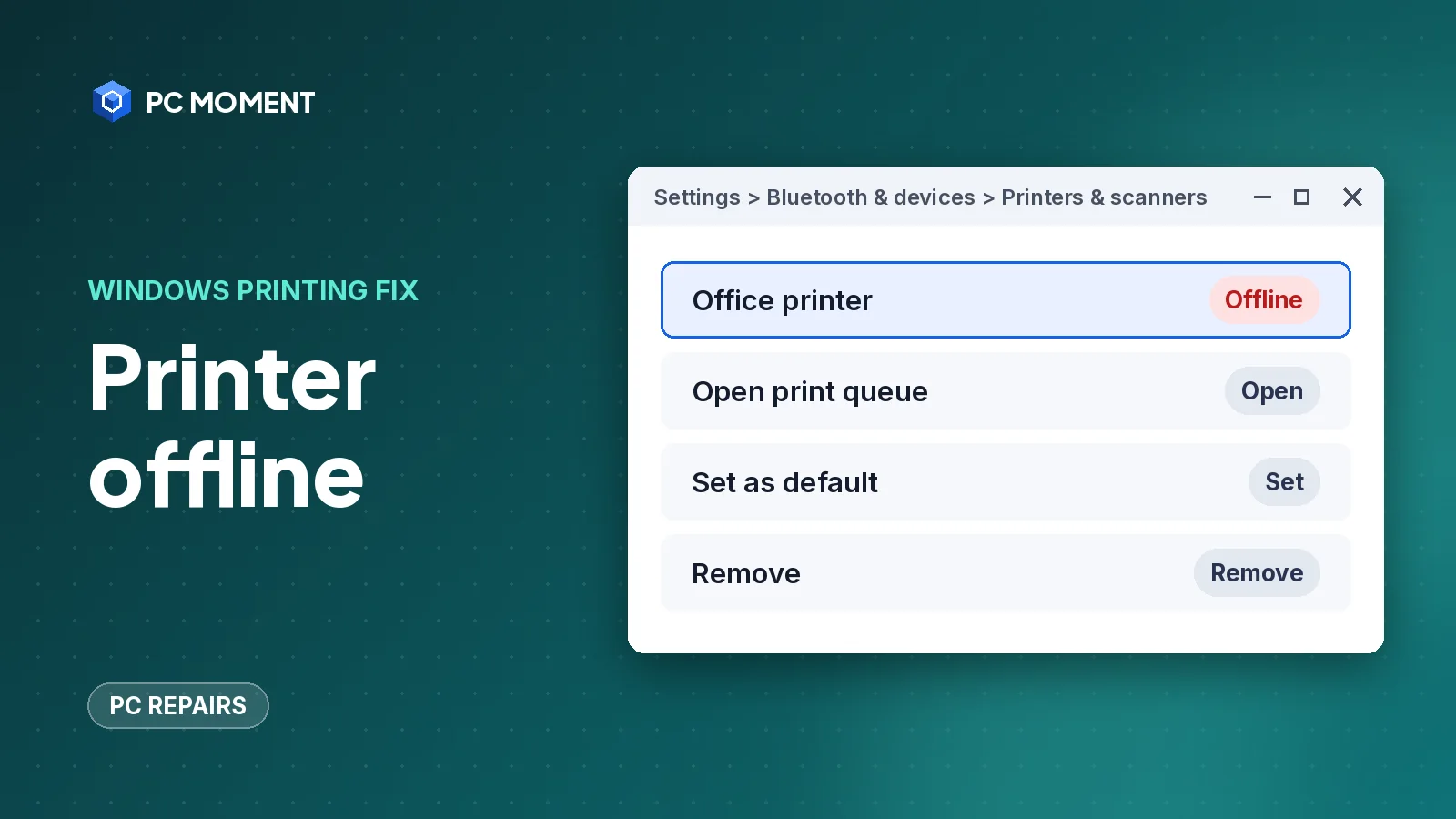
Your printer shows as offline when Windows can’t communicate with it, even if the printer itself is on and looks fine. Most of the time the cause is a dropped Wi-Fi connection, a stuck print job or a print service that needs a restart. Start by turning the printer off and on and checking it’s on the same network as your PC.
Work through the fixes in order and try printing after each one. The steps cover Windows 11 and Windows 10. Menu paths are different between the two, so each step lists both.
What causes a printer to show offline
- Network problems. A wireless printer that lost its Wi-Fi connection, or a PC on a different network (such as a guest network), can’t reach it.
- Loose or faulty USB cable on a wired printer.
- Stuck print jobs in the queue can block everything behind them.
- The Print Spooler service that manages printing has stopped or hung.
- Use Printer Offline or Pause Printing is turned on in the print queue.
- Windows switched the default printer to another device, so jobs go somewhere else.
- An outdated driver or a changed network address, so Windows looks for the printer in the wrong place.
How to fix a printer that shows offline
| Fix | When it helps |
|---|---|
| 1. Run the printer troubleshooter | Any offline printer; it checks common causes automatically |
| 2. Power cycle the printer | The printer or its connection is stuck |
| 3. Check the network or USB cable | Wireless printer on another network, loose USB cable |
| 4. Set it as default and check the queue options | Jobs go to the wrong printer, or Use Printer Offline is on |
| 5. Clear the print queue | Old jobs are stuck |
| 6. Restart the Print Spooler | Nothing prints from any app |
| 7. Remove and re-add the printer | It still shows offline after the steps above |
| 8. Update the driver | The printer stopped working after a change |
| 9. Restart your PC | Services need a fresh start |
Fix 1: Run the printer troubleshooter
Microsoft’s first recommendation is the automated printer troubleshooter in the Get Help app. It runs diagnostics and tries to fix common problems for you. Open Get Help from the Start menu, search for the printer troubleshooter and follow the prompts. It’s available on both Windows 11 and Windows 10.
If it doesn’t fix the problem, continue with the manual steps.
Fix 2: Power cycle the printer
- Turn the printer off.
- Unplug it from the power outlet.
- Wait about 30 seconds.
- Plug it back in and turn it on.
Wait until the printer has finished starting up before you try to print.
Fix 3: Check the network connection or USB cable
For a wireless printer:
- Make sure the printer’s wireless option is turned on.
- Check the printer’s control panel, or its manual, for its Wi-Fi status and network name.
- Make sure your PC is connected to the same network as the printer.
- Run the printer’s own wireless connectivity test, if it has one.
If the PC’s Wi-Fi is the problem, our guide to Wi-Fi not working on a laptop covers reconnecting and resetting the adapter.
For a USB printer, make sure the cable is properly connected at both ends.
Fix 4: Set it as the default printer and check the queue options
Windows 11:
- Go to Start > Settings > Bluetooth & devices > Printers & scanners.
- Select your printer, then Set as default.
- If you don’t see Set as default, turn off Let Windows manage my default printer first.
Windows 10:
- Go to Start > Settings > Devices > Printers & scanners.
- Select your printer, then Open queue.
- Select Printer > Set As Default Printer.
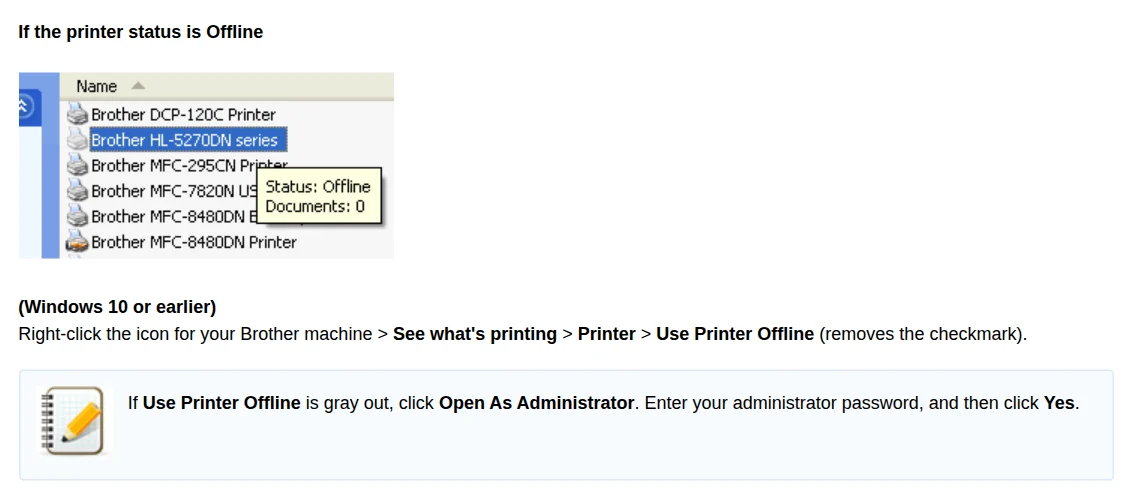
- In the same Printer menu, clear Pause Printing and Use Printer Offline if either is checked.
Tip: Brother’s support page notes that if Use Printer Offline or Pause Printing is grayed out, you can select Open As Administrator in the queue window and enter an administrator password.
Not sure which steps apply to you? Our guide on how to check your Windows version shows how to find out in a few seconds.
Fix 5: Clear the print queue
Windows 11: In Printers & scanners, select your printer, then Open print queue. Select the … menu and choose Cancel all.
Windows 10: In Printers & scanners, select your printer, then Open queue. Select each document under Document Name, then choose Document > Cancel.
Important: Cancelling removes those jobs for good. If you still need a document, print it again after the printer is back online.
Fix 6: Restart the Print Spooler service
The Print Spooler is the Windows service that manages print jobs.
Important: You may need an administrator account to restart services. Clear the print queue first (Fix 5), and don’t stop or disable other services while you’re in this window.
- Type services in the taskbar search box and open Services.
- Find Print Spooler in the list, right-click it and select Restart.
Microsoft’s printer connection guide also recommends checking how the service starts. Double-click Print Spooler, make sure Startup type is set to Automatic, then select OK.
Fix 7: Remove and re-add the printer
Remove it:
- Windows 11: In Settings > Bluetooth & devices > Printers & scanners, select the printer, then Remove and Yes.
- Windows 10: In Settings > Devices > Printers & scanners, select the printer, then Remove device and Yes.
Add it back with the printer turned on and connected:
- Windows 11: Next to Add a printer or scanner, select Add device and follow the prompts.
- Windows 10: Select Add a printer or scanner and follow the prompts.
If Windows doesn’t find it, Microsoft’s add-a-printer guide says to select the manual option next to The printer that I want isn’t listed (Add a new device manually on Windows 11) and follow the steps in the Add Printer window.
For a network printer, it helps to know its address first. Brother’s support page suggests printing the printer’s network configuration page to check its IP address. Your printer’s manual shows which buttons print that page.

Note: On ARM-based PCs, such as Copilot+ PCs, Microsoft says printer makers’ own installers may not work. Add the printer through Printers & scanners instead, unless the maker gives instructions for Windows on ARM.
Fix 8: Update the printer driver
Microsoft notes that most printers need the latest driver to work well. Download it from the printer maker’s support website for your exact model, install it, then try printing again. Re-adding the printer (Fix 7) is a good time to do this.
Fix 9: Restart your PC
A restart refreshes the services Windows uses to talk to the printer. Use Start > Power > Restart, then try printing again.
Brand-specific fixes
Printer makers have their own tools and settings that can get a printer back online. If the steps above didn’t help, try the guide for your brand:
If it still doesn’t work
- Print a test page from the printer itself. If the printer can’t print its own test or configuration page, the problem is the printer, not Windows. Check its display for error messages.
- Try another PC or phone. If nothing can print to it, look at the printer and your router. If only one PC can’t, focus on that PC’s network and drivers.
- Use the maker’s tools. Printer makers such as HP, Brother, Canon and Epson have support sites with drivers and troubleshooting for their models. Search the maker’s site for your model number together with “offline”.
- Get help. If the printer is under warranty and fails its own test page, contact the maker’s support. For a broader look at diagnosing PC problems safely, see our computer repair tips, and find more fixes in the PC repairs section.
Frequently asked questions
Why does my printer say offline when it's turned on?
Windows marks a printer as offline when it can't communicate with it. Common reasons are the printer and PC being on different Wi-Fi networks, a stuck print job, a stopped Print Spooler service, or the Use Printer Offline option being turned on.
How do I turn off Use Printer Offline?
On Windows 10, open Settings > Devices > Printers & scanners, select the printer and choose Open queue. In the Printer menu, clear Use Printer Offline and Pause Printing if either is checked.
Does restarting the Print Spooler delete my print jobs?
Restarting the service is safe to try, but clear jobs you don't need first. Microsoft's steps cancel stuck jobs in the print queue before restarting the Print Spooler.
Why does my wireless printer keep going offline?
If it drops off often, check that it stays on the same network as your PC and print its network configuration page to see its IP address. If the address changes, removing and re-adding the printer lets Windows find it again.
Do I need to reinstall the printer driver?
Try the free checks first. If the printer still shows offline, remove it, add it again and install the latest driver from the printer maker's support site.
Related guides
PC Repairs
Wi-Fi Not Working on Your Laptop? How to Fix It on Windows 11 and 10
Laptop Wi-Fi not working? Check airplane mode and the Wi-Fi switch, then reset the network stack, the adapter driver and your router, in that order.
7 min read
PC Repairs
Sound Not Working on Windows 11? 10 Fixes That Bring Audio Back
No sound on Windows 11? Check the output device first, then work through the troubleshooter, audio services and driver fixes in order.
7 min read
PC Repairs
Second Monitor Not Detected? How to Fix It in Windows 11 and 10
Windows not detecting your second monitor? Check the cable and input source, press Windows + P, use Detect in Display settings, then reset or roll back the graphics driver.
7 min read

PC Repairs
Scripted Diagnostics Native Host (sdiagnhost.exe): What It Is and How to Stop It Safely
Scripted Diagnostics Native Host (sdiagnhost.exe) runs the scripts behind Windows troubleshooters. Here's how to check it's genuine, stop it and fix its crashes.
5 min read