Second Monitor Not Detected? How to Fix It in Windows 11 and 10
Windows not detecting your second monitor? Check the cable and input source, press Windows + P, use Detect in Display settings, then reset or roll back the graphics driver.
By PC MomentUpdated 7 min read
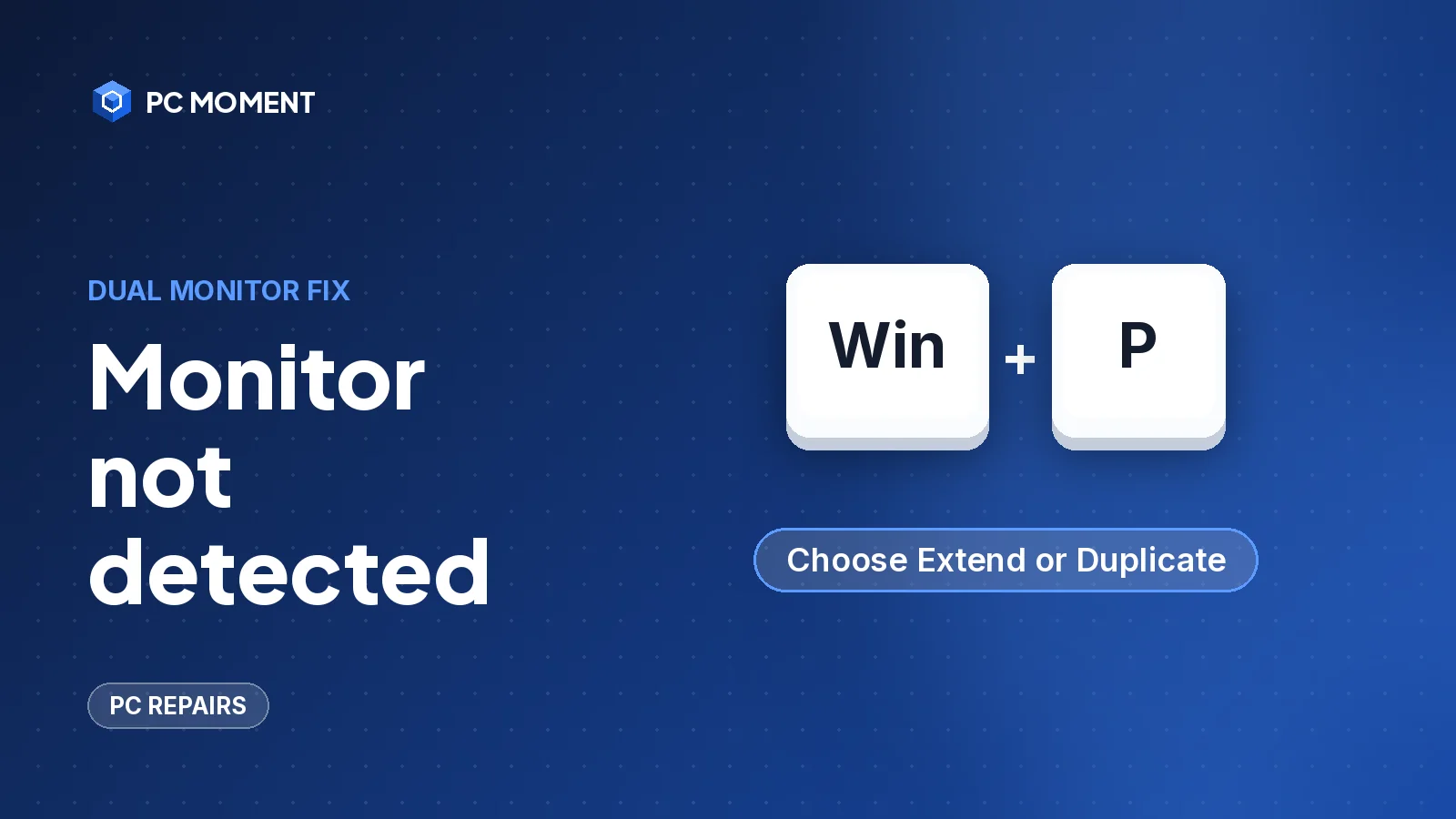
When your second monitor isn’t detected, Windows either isn’t getting a signal from it or isn’t set to use it. Check the cable and the monitor’s input source first, then press Windows + P and pick Extend. If the monitor still doesn’t appear, use Detect in Display settings and reset the graphics driver.
The fixes below work on Windows 11 and Windows 10, starting with the quickest. Check the monitor after each one.
What causes a second monitor not to be detected
- A loose, damaged or wrong cable. One bad cable is enough to stop the monitor from showing up.
- The wrong input source selected in the monitor’s own menu, so it’s listening to a different port.
- The display mode. If Windows is set to PC screen only, it doesn’t use the second monitor.
- Docks, dongles and adapters that cause conflicts or support fewer monitors than you’ve connected.
- Graphics driver problems, especially right after a driver or Windows update.
- Resolution or refresh rate settings that the monitor or connection can’t handle.
How to fix a second monitor not detected
| Fix | When it helps |
|---|---|
| 1. Check power, cables and input source | Monitor shows “no signal” or nothing at all |
| 2. Press Windows + P | Windows is using only one screen |
| 3. Use Detect in Display settings | The monitor is connected but not listed |
| 4. Reset the graphics driver | A setup that used to work stopped |
| 5. Restart or shut down fully | The reset didn’t help |
| 6. Remove the dock or adapter | You connect through a dock, hub or dongle |
| 7. Try another port and test the monitor elsewhere | You’re not sure whether the PC or the monitor is at fault |
| 8. Update, roll back or reinstall the driver | It broke after an update, or nothing else helped |
| 9. Lower the resolution or change the refresh rate | Detected, but the screen is black or flickers |
| 10. Replace the cable | A different cable makes it work |
Fix 1: Check power, cables and the input source
- Make sure the monitor is plugged in and turned on.
- Check that the video cable is firmly seated at both ends, at the monitor and at the PC or dock.
- Use the buttons on the monitor to open its menu and select the input you’re actually using (HDMI, DisplayPort, DVI or VGA). Dell lists the wrong input source as a common sign of incorrect monitor settings.
Fix 2: Press Windows + P and choose Extend
Press Windows + P. Windows shows four options:
- PC screen only
- Duplicate
- Extend
- Second screen only
Microsoft’s first troubleshooting step is to make sure Extend is selected. Duplicate also turns on the second monitor, but shows the same thing on both screens.
Fix 3: Use Detect in Display settings
Windows 11:
- Select Start > Settings > System > Display.
- Open Multiple displays and select Detect.
Windows 10: Select Start > Settings > System > Display, then under Multiple displays select Detect.
While you’re there, select Identify to show a number on each screen. That tells you which display Windows thinks is which. You can then drag the displays into the right arrangement and select Apply.
Fix 4: Reset the graphics driver with Windows + Ctrl + Shift + B
If the second monitor used to work and suddenly stopped, press Windows logo key + Ctrl + Shift + B. Microsoft lists this as the first step for a setup that stopped working. It resets the graphics driver.
The same shortcut is worth trying if your main screen goes black.
Fix 5: Restart, then shut down fully
- Select Start > Power > Restart and check the monitor.
- If that doesn’t help, select Start > Power > Shut down, wait until the PC is off, then turn it back on.
Fix 6: Disconnect docks, dongles and adapters
Microsoft notes that docks, dongles, adapters and other accessories can cause conflicts. To test:
- Unplug the monitor from the dock or adapter.
- Connect it straight to a video port on the PC, if it has one.
- If it works now, the dock or adapter is the problem. Check its documentation and support page for your model.
Also check how many monitors your setup supports. Microsoft says to ask your graphics adapter’s manufacturer, and Dell’s guide says to check your computer’s manual for a limit on the number of monitors supported by the computer or docking station.
Note: A display splitter doesn’t give you a second desktop. Microsoft explains that it duplicates the same signal. If your PC has only one video port, you need a docking station or, with a USB-C port, a USB adapter.
Fix 7: Try another port, and test the monitor on another PC
- If your PC has more than one video output, plug the monitor into a different one.
- Connect the monitor to another PC or laptop. If it doesn’t work there either, the monitor or its cable is the problem. If it does, focus on your PC.
Dell also suggests connecting monitors one at a time, so Windows can identify each one individually.
If your PC has more than one graphics adapter, Microsoft suggests switching the default adapter with the software that came with the secondary adapter.
Fix 8: Update, roll back or reinstall the graphics driver
Open Device Manager from the taskbar search and expand Display adapters. Then try these in order:
- Roll back if the problem started after an update: right-click your adapter, select Properties, open the Driver tab and select Roll Back Driver.
- Update: right-click the adapter, select Update driver and choose to search automatically for drivers. You can also get the latest driver from your PC maker’s or graphics card maker’s website. Dell’s guide notes that outdated graphics, chipset and BIOS versions are a common cause of detection problems.
- Reinstall: right-click the adapter and select Uninstall device. Check Attempt to remove the driver for this device, select Uninstall and restart. Then return to Device Manager and use Update driver.
Important: Changing drivers can require an administrator account, and the reinstall needs a restart. Save your work first, and try a rollback or update before you uninstall anything.
Fix 9: Lower the resolution or change the refresh rate
If Windows detects the monitor but it stays black, flickers or shows an error, the settings may be more than the monitor or connection can handle. Dell suggests trying a lower resolution on each monitor.
To change the refresh rate:
- Windows 11: Go to Start > Settings > System > Display > Advanced display, select the monitor and pick a rate next to Choose a refresh rate.
- Windows 10: Go to Start > Settings > System > Display > Advanced display settings, pick the monitor under Choose display and set Refresh rate.
Microsoft notes that rates marked with an asterisk don’t support your current resolution, and choosing one changes the resolution.
Fix 10: Replace the video cable
Microsoft’s guide says to swap in a different cable: if the new one works, the old one was faulty. Borrow a cable from another device first if you can. If you need a new one, match the ports on both ends, for example a DisplayPort cable or an HDMI cable, and check that it’s long enough for your desk.
If it still doesn’t work
- Check Windows updates. Microsoft suggests installing pending updates before troubleshooting further. Our guide on how to check your Windows version shows which version you’re on.
- Reset the monitor. Dell suggests resetting the monitor from its on-screen menu. The steps vary by model, so check the manual.
- Report the bug. If a driver or Windows update clearly caused it, Microsoft asks you to report it through the Feedback Hub with the steps that led to the problem.
- Get it checked. If the monitor fails on every PC and cable, it likely needs repair or replacement. If no monitor works from any port on your PC, the graphics hardware may be faulty. Our computer repair tips explain when to call a professional, and the PC repairs section has more fixes.
Frequently asked questions
How do I force Windows to detect a second monitor?
Go to Start > Settings > System > Display > Multiple displays and select Detect. Also press Windows + P and make sure Extend or Duplicate is selected, not PC screen only.
What does Windows + Ctrl + Shift + B do?
It resets the graphics driver. Microsoft suggests it as the first step when a monitor setup that used to work has stopped working.
Why is my second monitor not detected through a docking station?
Docks, dongles and adapters can cause conflicts. Connect the monitor directly to the PC to test it, and check how many monitors your PC and dock support.
Can a cable cause a second monitor not to be detected?
Yes. Microsoft suggests checking that the cable is firmly seated at both ends and trying a different cable. If the new cable works, the old one was faulty.
Why is my second monitor detected but the screen stays black?
Check that the monitor's input source matches the port you're using, then try a lower resolution or a different refresh rate in Advanced display settings.
Related guides
PC Repairs
Sound Not Working on Windows 11? 10 Fixes That Bring Audio Back
No sound on Windows 11? Check the output device first, then work through the troubleshooter, audio services and driver fixes in order.
7 min read
PC Repairs
Wi-Fi Not Working on Your Laptop? How to Fix It on Windows 11 and 10
Laptop Wi-Fi not working? Check airplane mode and the Wi-Fi switch, then reset the network stack, the adapter driver and your router, in that order.
7 min read
PC Repairs
Memory Management Blue Screen (0x1A): How to Fix It in Windows 10 and 11
The MEMORY_MANAGEMENT stop code means Windows hit a serious memory error. Test your RAM, update drivers, repair system files and check the disk, in that order.
7 min read
PC Repairs
Why Is My Printer Offline? How to Get It Back Online in Windows 11 and 10
Windows shows a printer as offline when it can't talk to it. Restart the printer, check the network, then clear the queue and restart the Print Spooler.
7 min read