Git Clone Specific Branch: --branch, --single-branch and --depth
Clone one Git branch with git clone --branch, download only that branch with --single-branch, keep it small with --depth 1, or clone a tag instead.
By PC MomentUpdated 5 min read
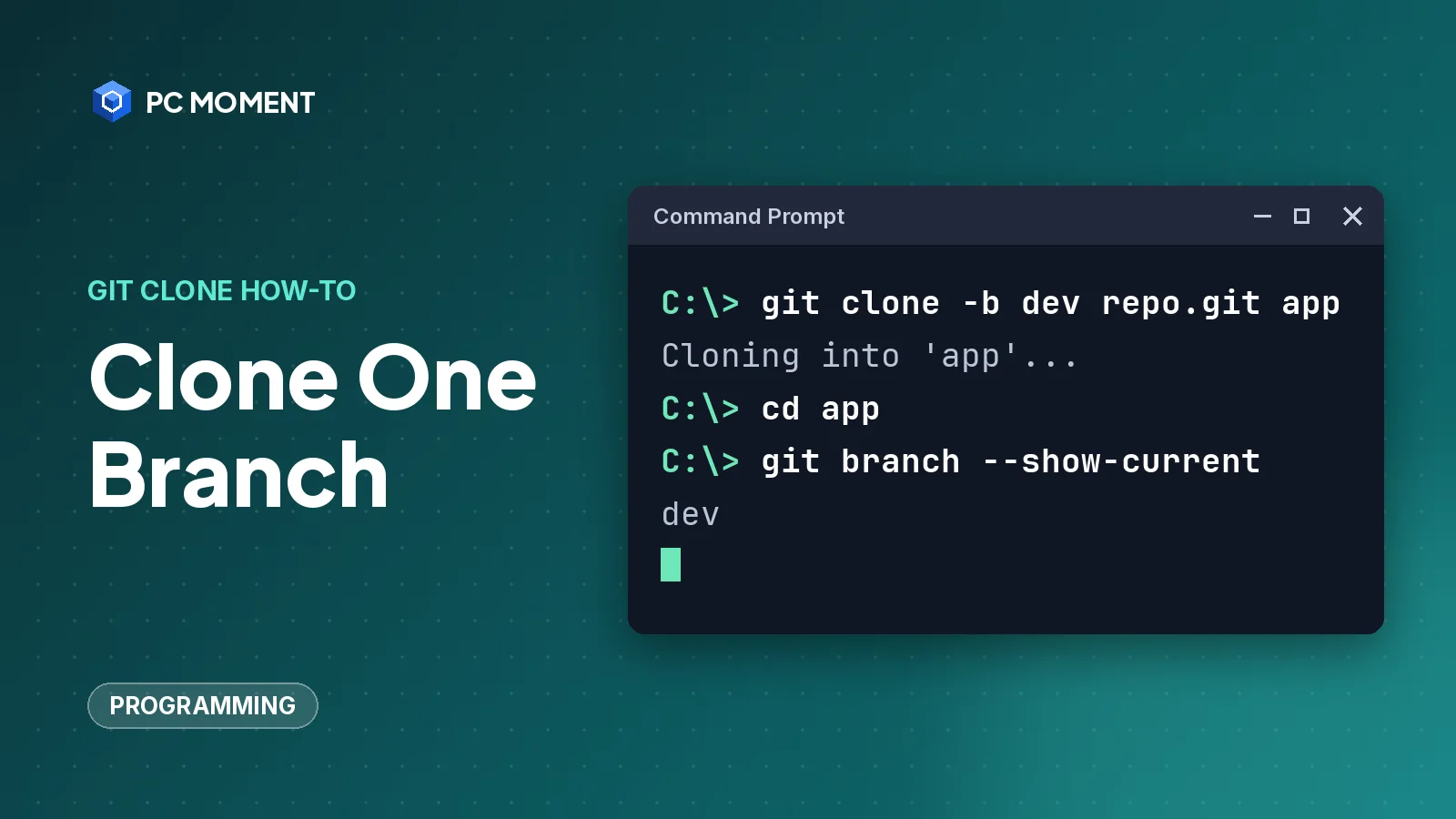
By default, git clone checks out whatever branch the remote’s HEAD points to, usually main. To start on a different branch, add --branch (or -b):
git clone --branch dev https://github.com/you/app.gitThat clones the repository and checks out dev. If you also want to skip downloading the other branches, add --single-branch, and for the smallest, fastest download add --depth 1.
Clone a branch: commands at a glance
| Goal | Command |
|---|---|
Clone and check out dev | git clone -b dev <url> |
Clone only the dev branch | git clone -b dev --single-branch <url> |
Only the latest commit of dev | git clone -b dev --depth 1 <url> |
| Clone a tag (detached HEAD) | git clone -b v1.0 <url> |
| Clone into a folder you name | git clone -b dev <url> my-folder |
| Switch branches after a normal clone | git switch dev |
Replace <url> with the repository’s HTTPS or SSH address, which most hosts show under a Code or Clone button.
How to clone a specific branch
Option 1: —branch (check out one branch, keep the rest)
git clone --branch dev https://github.com/you/app.gitCloning into 'app'...The git manual says --branch points the new HEAD to that branch “instead of the branch pointed to by the cloned repository’s HEAD.” The rest of the repository still comes along. Check it:
cd app
git branch -a
* dev
remotes/origin/HEAD -> origin/main
remotes/origin/dev
remotes/origin/mainYou get a local dev and remote-tracking copies of every other branch, so you can switch later without downloading again. For most people this is the right choice.
If the branch name is wrong, the clone stops and no project folder is left behind:
fatal: Remote branch nope not found in upstream originBranch names are case-sensitive. Check the exact name on the hosting site, or list the remote’s branches with git ls-remote origin from an existing clone.
Option 2: —single-branch (download only that branch)
git clone --branch dev --single-branch https://github.com/you/app.gitPer the git manual, this clones “only the history leading to the tip of a single branch,” and later fetches only update that branch. git branch -a now shows just:
* dev
  remotes/origin/dev
Use this for big repositories with many long-lived branches when you only need one of them.
Option 3: —depth 1 (shallow clone, fastest)
git clone --branch dev --depth 1 https://github.com/you/app.git--depth 1 creates a shallow clone with only the latest commit of the branch. It implies --single-branch unless you also pass --no-single-branch. This suits build servers, quick looks at the code and CI jobs, where history doesn’t matter.
Note: A shallow clone has a truncated history, so
git logshows only the commits you fetched. To download the rest of the history later, rungit fetch --unshallowinside the clone.
Clone a tag instead of a branch
--branch accepts tags as well:
git clone --branch v1.0 --depth 1 https://github.com/you/app.gitThe git manual notes that with a tag, Git “detaches the HEAD at that commit,” so you’ll see a “You are in ‘detached HEAD’ state” message. That’s fine for building or reading a release. If you want to make commits, create a branch first:
git switch -c my-fixClone into a specific folder
Put the folder name after the URL:
git clone --branch dev https://github.com/you/app.git app-devWithout it, Git uses the “humanish” part of the URL (app). The target folder must not exist or must be empty. After cloning, cd into the folder before running other Git commands; running them from the parent folder is a common cause of fatal: not a git repository.
Switch to another branch after a full clone
If you already cloned normally, you don’t need to clone again. Switch to the branch:
git switch devSwitched to a new branch 'dev'
branch 'dev' set up to track 'origin/dev'.When no local dev exists but exactly one remote has a branch with that name, git switch creates a local branch that tracks it. That’s the same as git switch -c dev --track origin/dev. Older guides use git checkout dev, which does the same here.
If you have uncommitted changes that would be overwritten, Git won’t switch.
Get more branches after a single-branch clone
A --single-branch or --depth clone only fetches the branch you cloned, so git switch main fails with:
fatal: invalid reference: mainAdd the branch to what your clone fetches, then fetch and switch:
git remote set-branches --add origin main
git fetch origin
git switch main
set-branches --add adds to the list of branches the remote tracks instead of replacing it. To track every branch again, use '*' as the branch name (with the quotes):
git remote set-branches origin '*'
git fetch origin
Which option should you use?
- You’ll work on the project for a while: plain
git clone -b dev <url>. You have every branch locally and can switch at any time. - The repository is huge and you need one branch: add
--single-branch. You keep that branch’s full history. - You only need the files, not the history (a build, a quick look, a CI job): use
--depth 1. - You want a specific release: clone the tag with
-b v1.0, and add--no-tagsif you don’t want later fetches to download other tags. The git manual notes that--no-tagsis saved in the clone’s config, so futuregit fetchandgit pullwon’t follow tags.
If it still doesn’t work
Remote branch ... not found: check the spelling and case of the branch name. The branch may also have been renamed; see how to rename a Git branch for what changes on the remote.- Authentication fails: the problem is access to the repository, not the branch. Check that you can open the repository in a browser while signed in, or ask whoever manages it.
destination path 'app' already exists and is not an empty directory: pick another folder name as the last argument.- You want to push a new branch from this clone: the first push needs
-u; see git push set upstream.
More Git guides are in the programming section.
Frequently asked questions
How do I clone a specific branch in Git?
Run git clone --branch <name> <url> (or -b <name>). Git clones the repository and checks out that branch instead of the remote's default branch.
Does git clone --branch download only that branch?
No. --branch only chooses which branch is checked out; the other branches still come down as remote-tracking branches. Add --single-branch to fetch only the history of that one branch.
Can I clone a tag instead of a branch?
Yes. --branch also accepts a tag name. Git then checks out that commit in detached HEAD state, so create a branch with git switch -c if you want to commit.
What does --depth 1 do?
It makes a shallow clone with only the most recent commit. --depth implies --single-branch unless you also pass --no-single-branch.
How do I get the other branches later after a single-branch clone?
Run git remote set-branches --add origin <branch> and then git fetch origin. After that, git switch <branch> creates a local branch that tracks it.
Related guides
Programming
Git Rename Local Branch (and the Remote Branch Too)
Rename a local Git branch with git branch -m, then update the remote branch and its upstream, rename it on GitHub, or switch master to main.
5 min read

Programming
Git Push Set Upstream: Fix "The Current Branch Has No Upstream Branch"
Fix "fatal: The current branch has no upstream branch" with git push -u, set tracking on an existing branch, and make Git set the upstream for you.
5 min read
Programming
Git Delete Branch: Remove Local and Remote Branches Safely
Delete a Git branch on your machine with git branch -d, on the remote with git push --delete, and clean up stale remote-tracking branches with git fetch --prune.
6 min read

Programming
Error: src refspec main does not match any (and master): How to Fix It
Git can't push main or master because that branch doesn't exist locally yet. Make your first commit, match the branch name, and push again.
5 min read