Git Delete Branch: Remove Local and Remote Branches Safely
Delete a Git branch on your machine with git branch -d, on the remote with git push --delete, and clean up stale remote-tracking branches with git fetch --prune.
By PC MomentUpdated 6 min read
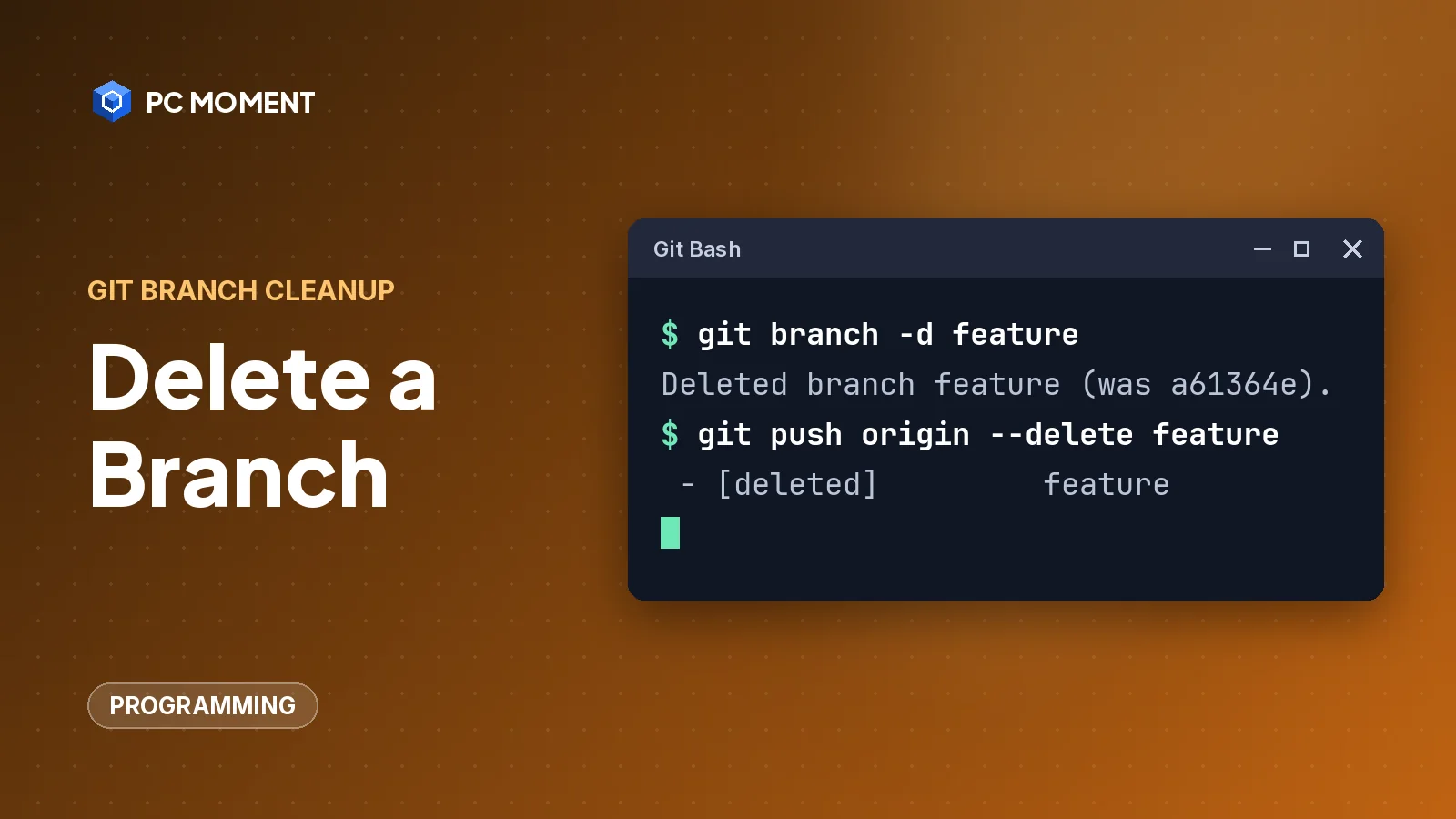
A Git branch can live in up to three places: your local repository, the remote (GitHub, GitLab, a company server), and the remote-tracking copy your clone keeps of the remote, such as origin/feature. Deleting it in one place doesn’t delete it in the others.
The quick answer: git branch -d feature deletes the local branch, git push origin --delete feature deletes it on the remote, and git fetch --prune cleans up the leftover origin/feature in other clones.
Delete branch commands at a glance
| What you want to delete | Command |
|---|---|
| A local branch that’s merged | git branch -d feature |
| A local branch, merged or not | git branch -D feature |
| A branch on the remote | git push origin --delete feature |
| Same, short form | git push origin -d feature |
| Same, older refspec form | git push origin :feature |
| One stale remote-tracking branch | git branch -d -r origin/feature |
| All stale remote-tracking branches | git fetch --prune |
Replace feature with your branch name and origin with your remote’s name if it’s different (git remote -v lists them).
How to delete a local branch
-
Make sure you’re not on the branch you want to delete. Check with:
git branch --show-currentIf it prints the branch you want to delete, switch away from it:
git switch mainGit refuses to delete the branch that’s checked out. Depending on your Git version, the error looks something like this:
error: cannot delete branch 'feature' used by worktree at '/home/you/projects/app' -
Delete the branch:
git branch -d featureDeleted branch feature (was a61364e).The hash in brackets is the commit the branch pointed to. Copy it somewhere for a while; it’s your easiest way back if you change your mind.
You can delete several branches at once: git branch -d feature fix-typo old-test.
When -d says “not fully merged”
-d is the safe option. Per the git manual, the branch must be fully merged into its upstream branch, or into HEAD if it has no upstream. If it isn’t, Git stops:
error: the branch 'experiment' is not fully merged.
If you are sure you want to delete it, run 'git branch -D experiment'
Newer Git versions print the second line as a hint:. Either way, Git is protecting commits that exist only on that branch. Before you force anything, check what you’d lose:
git log --oneline main..experimentThis lists the commits on experiment that aren’t on main. If you want to keep some of that work, merge it or push the branch first. If the list is empty or you really don’t need it, force the delete.
Important:
git branch -Ddeletes the branch whatever its merge status, and the git manual notes that the branch’s own reflog is deleted with it. Commits that existed only on that branch are no longer reachable from any branch, so make sure you don’t need them first.
git branch -D experiment-D is the shortcut for --delete --force.
How to delete a remote branch
Deleting your local branch leaves the remote untouched. To delete the branch on the remote:
Important: This removes the branch for everyone who uses the remote. Check that it’s merged (or no longer needed) and that teammates aren’t still working on it.
git push origin --delete featureTo https://github.com/you/app.git
- [deleted] featureBoth git push origin -d feature and the older git push origin :feature do the same thing. The git manual explains that an empty source in a refspec (:feature) deletes the destination ref on the remote.
If the branch is already gone on the remote, you’ll see:
error: unable to delete 'feature': remote ref does not existThat usually means someone else deleted it, or a pull request merge did. Clean up your stale copy with the next section.
The Pro Git book points out that this only removes the pointer from the server; a Git server generally keeps the data for a while until garbage collection runs. Don’t rely on that as a backup, though.
Clean up stale remote-tracking branches
When a branch is deleted on the remote, your clone still remembers it as origin/feature until you prune it. That’s why git branch -a can list branches that no longer exist:
* main
  remotes/origin/main
  remotes/origin/old
Remove every stale remote-tracking branch while fetching:
git fetch --prune - [deleted] (none) -> origin/oldOr prune without fetching anything new:
git remote prune originAdd --dry-run to that second command to see what would be removed first. For a single branch, git branch -d -r origin/old works too, but the git manual notes this only makes sense if the branch no longer exists on the remote; otherwise the next fetch brings it back.
To prune on every fetch automatically:
git config --global fetch.prune trueWith this set, git fetch behaves as if you had passed --prune every time.
Delete a branch on GitHub
You can also delete a branch in the browser:
- Open the repository’s main page on GitHub.
- Open the branch dropdown above the file list and click View all branches.
- Click the trash icon next to the branch.
- If the branch has an open pull request, GitHub warns that deleting it closes that pull request. Read the warning, then click Delete.
A few GitHub rules to know:
- You can’t delete the default branch. GitHub’s docs say to choose a new default branch first.
- By default, you can’t delete a protected branch. Ask a repository admin if a protection rule is blocking you.
- After a pull request is merged or closed, you can restore its deleted head branch: open the pull request (under Pull requests, then Closed) and click Restore branch near the bottom.
Get a deleted local branch back
If you deleted a branch by mistake, recreate it from the commit hash Git printed when it deleted it:
git branch feature a61364eLost the hash? If you had the branch checked out recently, git reflog lists the commits HEAD has pointed to, and you can recreate the branch from one of those entries. Our guide to undoing the last commit in Git explains how to read the reflog.
If it still doesn’t work
fatal: not a git repository: you’re outside your project folder. See fatal: not a git repository.- The push is rejected on a protected branch or by a server hook: you don’t have permission to delete it. Ask the repository admin.
- A deleted branch keeps coming back in
git branch -a: someone is still pushing it, or you deleted only the remote-tracking copy. Rungit ls-remote originto list the branches that really exist on the remote. - You only wanted a different name, not a deletion:
- You have uncommitted work on the branch you’re about to leave:
For more Git walkthroughs, browse the programming guides.
Frequently asked questions
What is the difference between git branch -d and -D?
-d deletes a branch only if it is fully merged into its upstream branch, or into HEAD if it has no upstream. -D is short for --delete --force and deletes the branch whatever its merge status.
Does deleting a local branch delete it on GitHub too?
No. git branch -d only removes the branch from your clone. To delete it on the remote, run git push origin --delete followed by the branch name.
Why does git branch -a still show a branch that was deleted on the remote?
Your clone keeps remote-tracking branches until you prune them. Run git fetch --prune (or git remote prune origin) to remove the ones that no longer exist on the remote.
Can I get a deleted branch back?
Often, yes. git branch -d prints the commit the branch pointed to, so git branch <name> <commit> recreates it. On GitHub, a deleted head branch of a closed pull request can be restored with the Restore branch button.
Why can't I delete the branch I'm on?
Git won't delete a branch that is checked out. Switch to another branch first, for example with git switch main, then delete it.
Related guides

Programming
Git Push Set Upstream: Fix "The Current Branch Has No Upstream Branch"
Fix "fatal: The current branch has no upstream branch" with git push -u, set tracking on an existing branch, and make Git set the upstream for you.
5 min read

Programming
Git Push --force-with-lease: The Safer Way to Force Push
What git push --force-with-lease does, how it differs from --force, when to use it after a rebase or amend, and why --force-if-includes makes it safer.
7 min read

Programming
Error: src refspec main does not match any (and master): How to Fix It
Git can't push main or master because that branch doesn't exist locally yet. Make your first commit, match the branch name, and push again.
5 min read
Programming
Git Undo Last Commit: Reset, Revert, Amend and How to Get It Back
Undo your last Git commit the right way: keep the changes, throw them away, or reverse a commit you already pushed, plus how to recover from a bad reset.
7 min read