Git Rename Local Branch (and the Remote Branch Too)
Rename a local Git branch with git branch -m, then update the remote branch and its upstream, rename it on GitHub, or switch master to main.
By PC MomentUpdated 5 min read
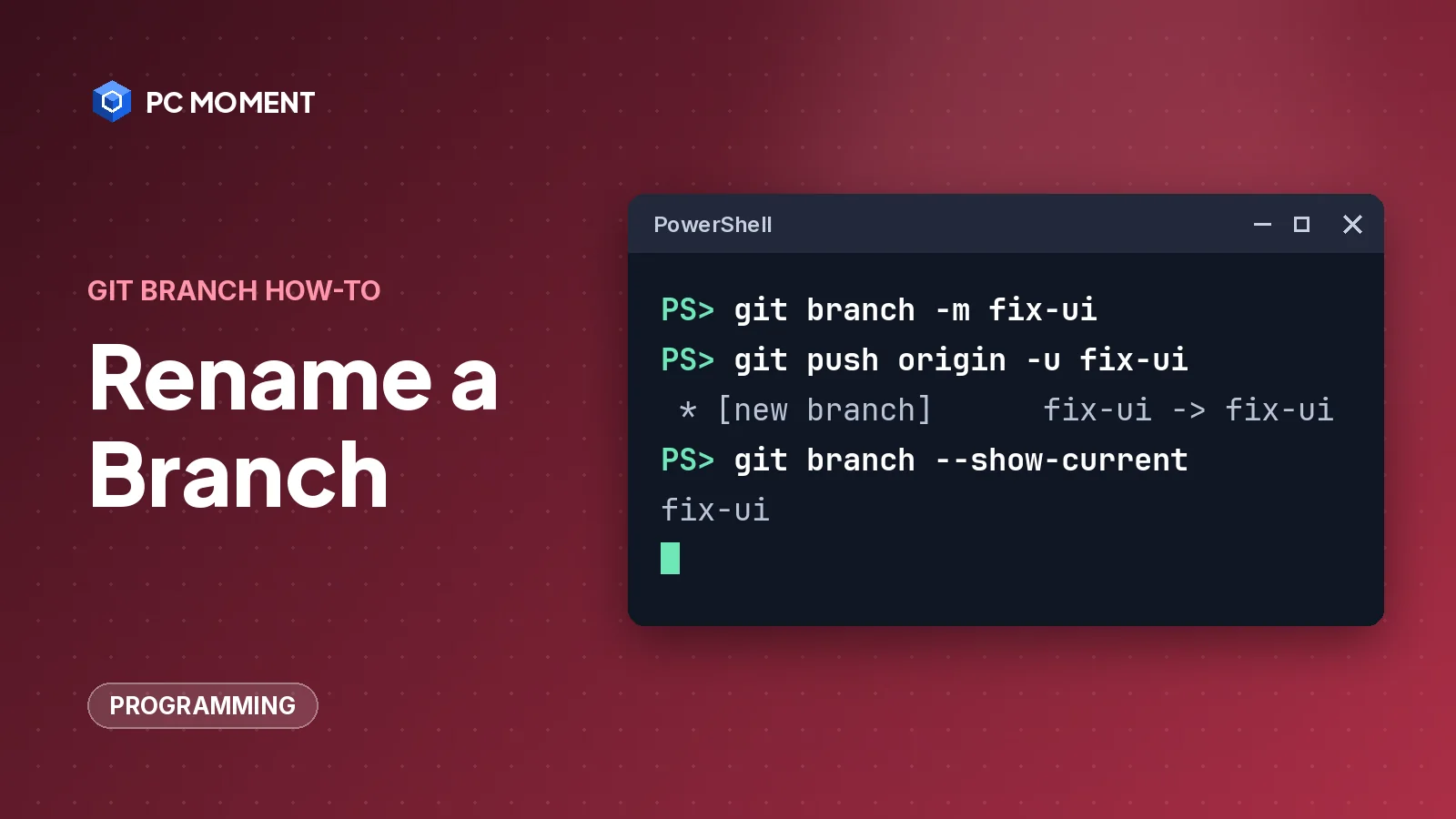
Typo in a branch name, or a ticket number that changed? Renaming a local Git branch takes one command: git branch -m new-name. The branch keeps its commits, and Git moves its config and reflog along with it.
The catch is the remote. Git has no “rename” for a branch that’s already pushed, so on the remote you push the new name and delete the old one, or rename it on GitHub.
Rename branch commands at a glance
| Task | Command |
|---|---|
| Rename the branch you’re on | git branch -m new-name |
| Rename any branch | git branch -m old-name new-name |
Rename even if new-name exists | git branch -M old-name new-name |
| Push the new name and track it | git push origin -u new-name |
| Delete the old name on the remote | git push origin --delete old-name |
| Check name and upstream | git branch -vv |
-m is short for --move. The git manual describes it as “Move/rename a branch, together with its config and reflog.”
How to rename a local branch
Rename the current branch
-
Check which branch you’re on:
git branch --show-current -
Rename it:
git branch -m fix-loginGit prints nothing when it works. Run
git branchto see the new name.
Rename a different branch
You don’t have to switch to a branch to rename it. Give both names:
git branch -m fix-lgoin fix-loginWhen the new name already exists
If a branch called new-name already exists, -m stops:
fatal: a branch named 'main' already existsImportant:
git branch -Mrenames anyway and replaces the existing branch with that name. Commits that were only on the replaced branch are no longer on any branch. Check it withgit log --oneline new-namebefore you force the rename.
git branch -M old-name new-nameNew names must follow Git’s branch name rules (git check-ref-format lists them: no spaces, no .., no ~, ^, :, ?, * or [, among others). Git rejects an invalid name instead of renaming.
How do you rename the remote branch?
Git can’t rename a branch on the remote in place. You push the branch under its new name, then delete the old name on the remote.
If you never pushed the branch, you’re done. If you did, the remote still has the old name, and your renamed branch still tracks it:
git branch -vv* fix-login 198e660 [origin/fix-lgoin] Fix login redirect
main 23f390c [origin/main] Add login formIf you run plain git push now, Git’s default simple push setting refuses because the local and upstream names don’t match:
fatal: The upstream branch of your current branch does not match
the name of your current branch.
Fix it in two steps.
-
Push the branch under its new name and make that the upstream:
git push origin -u fix-login* [new branch] fix-login -> fix-login branch 'fix-login' set up to track 'origin/fix-login'.The
-uflag is explained in our guide to git push set upstream. -
Delete the old name on the remote.
Important: Anyone else working on
fix-lgoinloses the branch they push to and pull from. Tell your team first, and make sure step 1 succeeded so nothing exists only under the old name.git push origin --delete fix-lgoin- [deleted] fix-lgoinMore options, including cleaning up stale references, are in how to delete a Git branch.
Teammates who had the old branch can rename theirs with the same git branch -m command and then run git fetch --prune to drop the stale origin/fix-lgoin.
Rename a branch on GitHub
On GitHub you can rename the branch in the browser instead. GitHub then redirects URLs that contain the old branch name, and it updates branch protection rules and the base branch of open pull requests.
- Open the repository’s main page.
- Open the branch dropdown and click View all branches.
- Next to the branch, open the More (three-dot) menu and click Rename branch.
- Type the new name, review the notes about local environments, and click Rename branch.
Things GitHub’s docs say it does not update:
- A
git pullfor the old branch name isn’t redirected. - Raw file URLs don’t redirect.
- GitHub Actions workflows don’t follow renames, so update branch names in your workflow files.
- An open pull request whose head is the renamed branch is closed.
Most branches can be renamed by anyone with write access. The default branch, and branches covered by protection rules or rulesets, need a repository administrator.
Update your local clone after a rename on GitHub
GitHub gives these commands to run in each local clone:
git branch -m OLD-BRANCH-NAME NEW-BRANCH-NAME
git fetch origin
git branch -u origin/NEW-BRANCH-NAME NEW-BRANCH-NAME
git remote set-head origin -a
In order, they rename your local branch, fetch the renamed remote branch, set it as the upstream, and update origin/HEAD to match the remote’s default branch. To remove the old remote-tracking reference too, run git remote prune origin.
Rename master to main
Renaming master to main is the most common case. On GitHub, rename the default branch in the browser (admin only) as above, then update each clone:
git branch -m master main
git fetch origin
git branch -u origin/main main
git remote set-head origin -a
On another server where you push the rename yourself, run git branch -m master main and git push origin -u main, then change the default branch in the server’s settings before you delete master there. GitHub, for example, won’t delete the repository’s default branch.
If your very first push fails with “src refspec main does not match any”, the branch has no commits yet. See error: src refspec main does not match any, which also covers git branch -M main.
To make new repositories start with main, set Git’s init.defaultBranch option:
git config --global init.defaultBranch mainIf it still doesn’t work
- Run
git branch -vvto see each branch’s name and upstream. A name in brackets that you don’t expect means the upstream still points to the old branch; fix it withgit branch -u origin/new-name. - If
git push origin --deleteis rejected, the branch may be protected or the remote’s default branch. Ask the repository admin. - Point the clone at the new name with
git remote set-branches origin new-name, rungit fetch origin, thengit branch -u origin/new-name.
More Git fixes are in our programming guides.
Frequently asked questions
How do I rename the branch I'm currently on?
Run git branch -m new-name. With only one name, Git renames the current branch.
Can I rename a branch I'm not on?
Yes. Run git branch -m old-name new-name from any branch. The branch keeps its commits, config and reflog.
Does git branch -m rename the branch on GitHub?
No. It only renames your local branch. Push the new name with git push origin -u new-name and delete the old one with git push origin --delete old-name, or rename it on GitHub, which also redirects URLs that use the old name.
What is the difference between git branch -m and -M?
-M is short for --move --force. -m refuses if a branch with the new name already exists, while -M renames anyway and replaces that branch.
Why does git push fail after I renamed my branch?
The renamed branch still tracks the old remote branch, and Git's default push setting refuses when the names don't match. Push with git push origin -u new-name to set the new upstream.
Related guides

Programming
Error: src refspec main does not match any (and master): How to Fix It
Git can't push main or master because that branch doesn't exist locally yet. Make your first commit, match the branch name, and push again.
5 min read
Programming
Git Delete Branch: Remove Local and Remote Branches Safely
Delete a Git branch on your machine with git branch -d, on the remote with git push --delete, and clean up stale remote-tracking branches with git fetch --prune.
6 min read

Programming
Git Push Set Upstream: Fix "The Current Branch Has No Upstream Branch"
Fix "fatal: The current branch has no upstream branch" with git push -u, set tracking on an existing branch, and make Git set the upstream for you.
5 min read

Programming
Git Push --force-with-lease: The Safer Way to Force Push
What git push --force-with-lease does, how it differs from --force, when to use it after a rebase or amend, and why --force-if-includes makes it safer.
7 min read