How to Open Task Manager on Chromebook and End Frozen Apps
Press Search + Esc to open Task Manager on a Chromebook, then end a frozen tab or app. Plus the Chrome menu route and the Diagnostics app for CPU and memory.
By PC MomentUpdated 5 min read
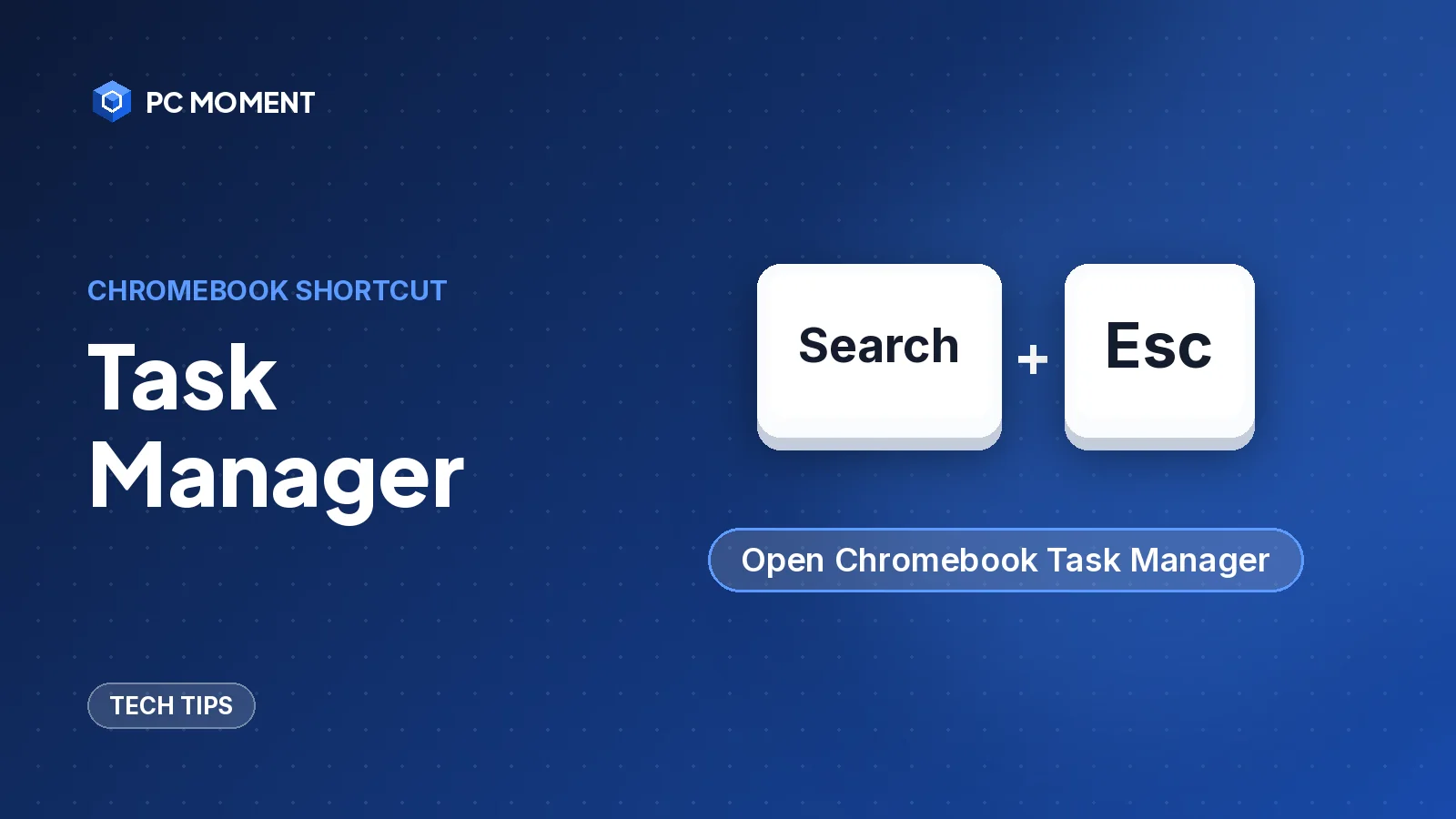
To open Task Manager on a Chromebook, press Search + Esc. The Task Manager window lists your open tabs, apps and extensions, so you can see what’s using memory or CPU and close anything that’s frozen. Google’s Chromebook Help also gives Shift + Esc for the same window.
No keyboard handy? Open Chrome, select More (the three dots) and go to More tools > Task Manager. Below are the steps for both, how to end a frozen task safely, and when to use the Diagnostics app instead.
Three ways to open Task Manager
| Method | How | Notes |
|---|---|---|
| Keyboard shortcut | Search + Esc | Listed in Google’s ChromeOS developer docs; use Launcher + Esc if your keyboard has a Launcher key |
| Alternative shortcut | Shift + Esc | Listed in Chromebook Help’s troubleshooting steps |
| Chrome menu | More > More tools > Task Manager | Works with a mouse or touchscreen |
Note: Depending on your keyboard, you have either a Search key or a Launcher key. Google says both work the same for shortcuts. On a Windows or Mac keyboard connected to a Chromebook, press the Windows key or the Command key instead.
Method 1: Search + Esc
- Press and hold the Search (or Launcher) key.
- Press Esc.
- The Task Manager window opens with a list of your tabs, apps and extensions.
Method 2: Shift + Esc
Chromebook Help’s troubleshooting steps for low memory say to “Open the Task Manager (press Shift + Esc)”. Use it if Search + Esc doesn’t respond on your keyboard.
Method 3: From the Chrome menu
- Open Chrome.
- At the top right, select More (the three dots).
- Select More tools > Task Manager.
How to end a frozen tab or app
When a tab or app stops responding, Task Manager lets you force it closed. These are the steps from Google’s Chrome Help:
- Open Task Manager with Search + Esc.
- Select Memory to sort the tasks by memory use, so the heaviest items are easy to spot.
- Select the tab, extension or app you want to close.
- Select End process.
Important: Any unsaved work in that tab or app is lost when you end it. If the page still responds at all, save or copy what you need first.
What to look for
- A single tab using far more memory than the rest. If it has stopped responding, end it, then reopen the page.
- Items labeled “Background page”. Google’s Chrome Help suggests looking for these. If one belongs to an extension you don’t need, turn the extension off or remove it in Chrome under More > Extensions > Manage Extensions.
- Video or app tasks you’re no longer using. Google’s advice is to close tasks you no longer need that use a lot of resources.
Tip: Closed a tab by mistake? Press Ctrl + Shift + T to reopen the last tab or window you closed.
Check CPU and memory with the Diagnostics app
Task Manager shows what each tab and app uses. To check the Chromebook as a whole, use the built-in Diagnostics app, available on ChromeOS version 90 and later.
Open Diagnostics
- From Settings: Select the time at the bottom right, select Settings, then About ChromeOS > Diagnostics.
- From the launcher: Press the Launcher key (or select the launcher button) and type Diagnostics.
- With the keyboard: Google’s ChromeOS release notes give the key sequence Ctrl + Search + Esc.
What Diagnostics shows
| Section | What you can check |
|---|---|
| Battery | Battery health, cycle count and current; a discharge test |
| CPU | A live CPU usage graph, current usage, temperature and speed, plus CPU tests |
| Memory | A memory test that measures system memory |
| Connectivity | Ethernet, Wi-Fi, cellular and Google Services connection tests |
The CPU graph is the part to watch when your Chromebook feels slow: Google says it can help identify which applications use the most CPU. Open Task Manager alongside it to find the tab or app behind a spike.
Important: The CPU tests can stress the device. Google warns that your Chromebook may run slowly while they run and the tests can take a long time, so save your work and run them when you don’t need the laptop.
If a memory or CPU test fails, Google says it may point to faulty hardware or a cooling problem, and to contact your Chromebook manufacturer.
Coming from Windows or a Mac?
Chromebook shortcuts are different from the ones you may know:
| System | Task Manager shortcut | Tool |
|---|---|---|
| Chromebook | Search + Esc | Task Manager |
| Windows 10 and 11 | Ctrl + Shift + Esc | Task Manager |
| Mac | See our Mac guide below | Activity Monitor |
On Windows, our guide to why your computer is so slow shows how to read Task Manager there, and on a Mac, see the Mac version of Task Manager.
If it still doesn’t work
If your Chromebook keeps freezing or Task Manager won’t open, work through Google’s steps for crashes and freezes:
- Turn your Chromebook off, then on again. This closes everything, including a task that’s stuck.
- Close all your apps and browser windows you don’t need.
- Hard refresh a problem page with Ctrl + Shift + R if one tab keeps causing the freeze.
- Remove recently added apps or extensions. If the problems started after you installed something, uninstall it.
- Install updates. Select the time, then Settings > About ChromeOS > Check for updates.
- Run Diagnostics for memory and CPU, as above.
- Reset or recover the Chromebook as a last resort. Google lists both as the final steps for crashes and freezes.
Important: A factory reset erases all user data on the Chromebook’s drive, including the Downloads folder. Back up your files to Google Drive or an external drive first. On a school or work Chromebook you can’t reset it yourself; contact your administrator.
If tabs keep reloading on their own, Google says the Chromebook might be running low on memory: close tabs you aren’t using, check Task Manager, and turn off extensions you don’t need.
Running several apps at once is where memory runs out fastest; our guide on how to split screen on a Chromebook covers working with two windows side by side, and how to rotate the screen on a Chromebook fixes a display that turned sideways. For more guides, browse Tech Tips.
Frequently asked questions
What is the shortcut for Task Manager on a Chromebook?
Press Search + Esc (or Launcher + Esc, depending on your keyboard). Google's Chromebook Help also lists Shift + Esc for opening the Task Manager.
Is there a Ctrl + Alt + Delete on a Chromebook?
Not in the Windows sense. The closest equivalent is Task Manager: press Search + Esc, select the frozen tab or app, and select End process.
How do I open Task Manager on a Chromebook without the keyboard?
Open Chrome, select More (the three dots) at the top right, then More tools > Task Manager.
Is it safe to end a process in Chromebook Task Manager?
Ending a tab, app or extension is safe in the sense that it only closes that item, but any unsaved work in it is lost. Save first if you can.
How do I see CPU and memory usage on a Chromebook?
Task Manager shows usage per tab, app and extension. For the whole system, open the Diagnostics app from Settings > About ChromeOS > Diagnostics, or with Ctrl + Search + Esc.
Related guides
Tech Tips
Task Manager on Mac: How to Use Activity Monitor and Force Quit Apps
Macs don't have Task Manager. Activity Monitor does the same job. Here's how to open it, read each tab and close frozen apps safely.
7 min read
Tech Tips
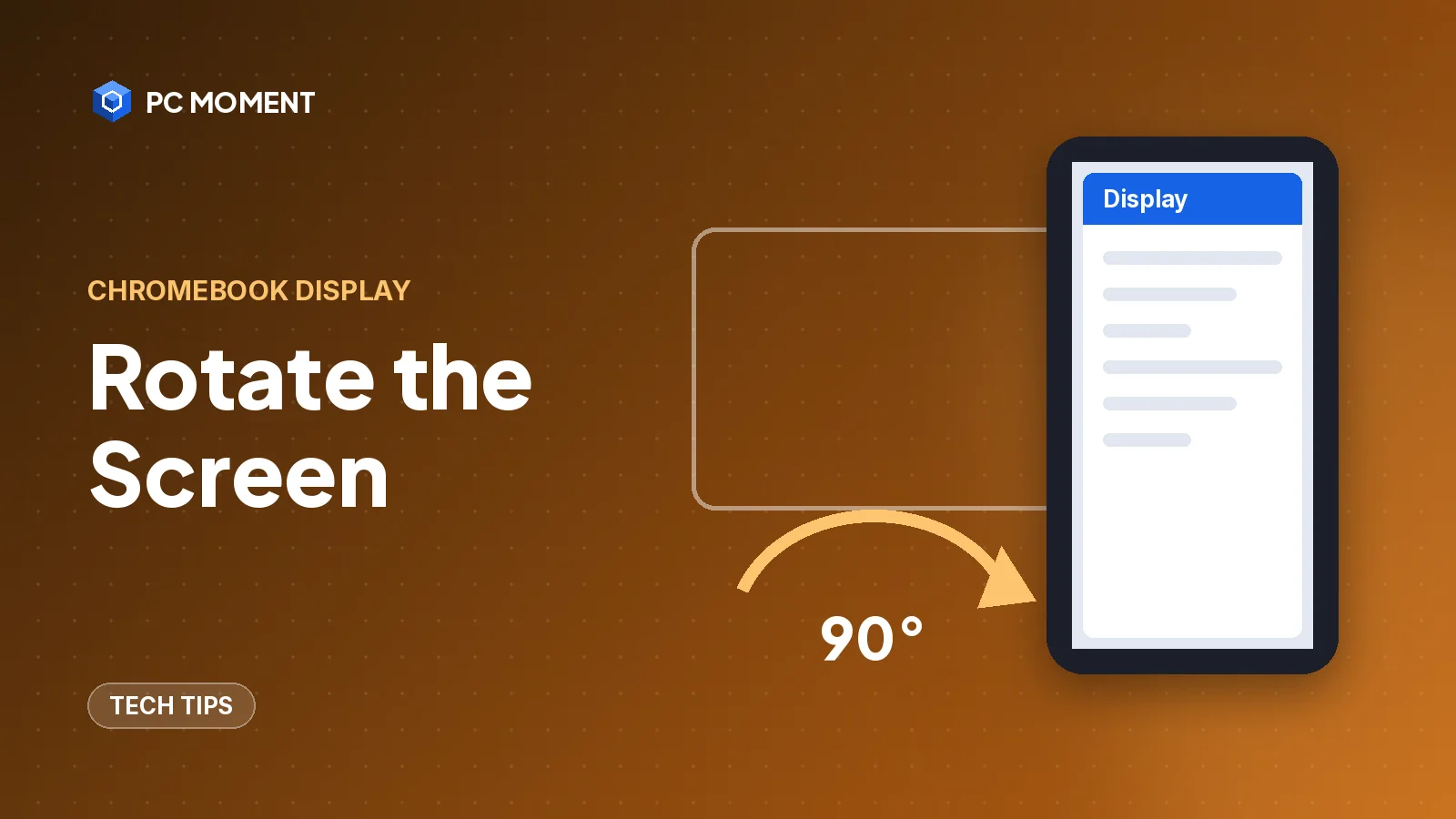
How to Rotate the Screen on a Chromebook (and Fix a Sideways Screen)
Press Ctrl + Shift + Refresh to rotate a Chromebook screen 90 degrees, or set the orientation in Settings. Works for the built-in screen and external monitors.
5 min read
Tech Tips
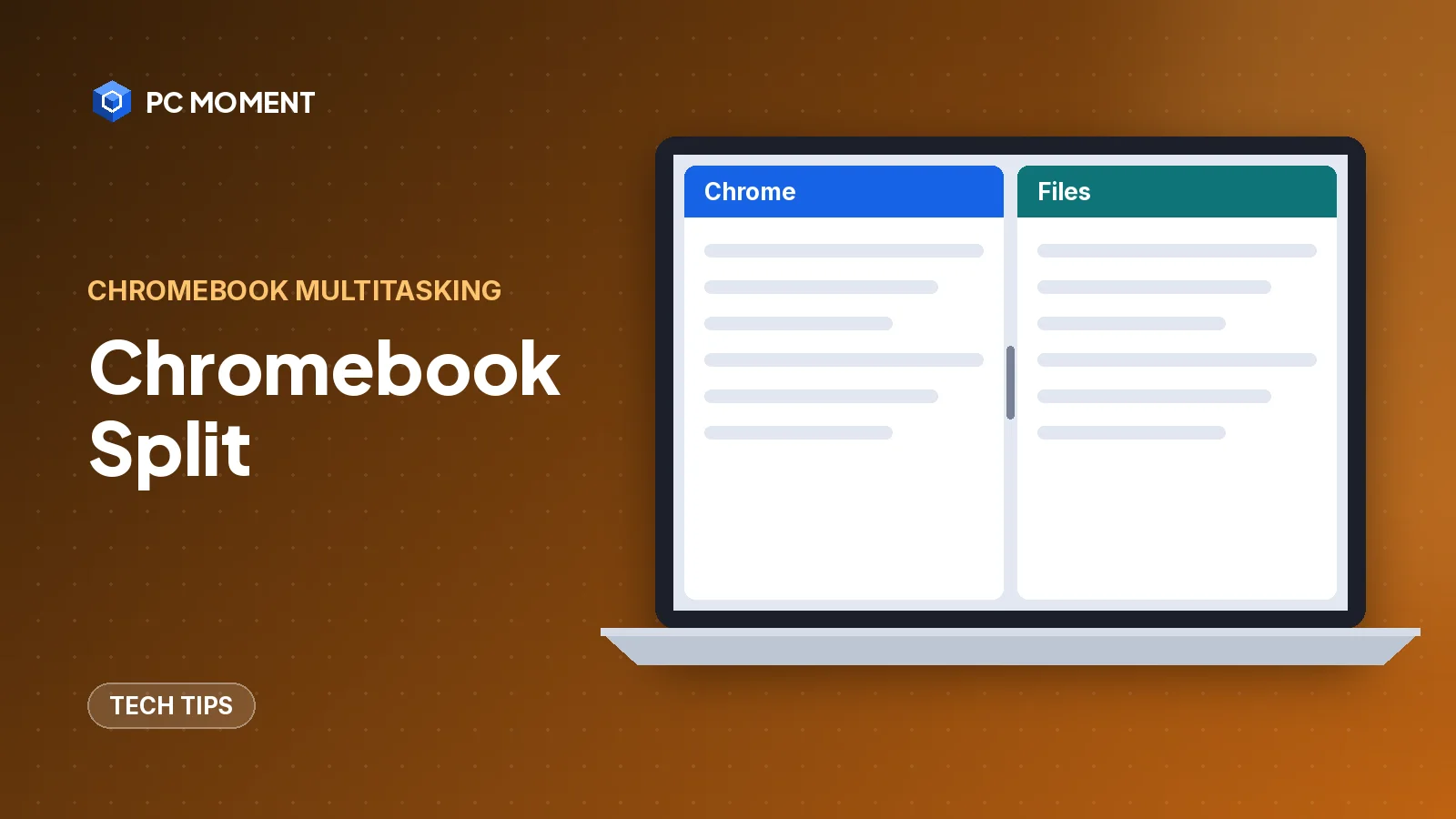
How to Split Screen on Chromebook: Shortcuts, Snap Groups and Tablet Mode
Press Alt + [ or Alt + ] to snap a Chromebook window to half the screen. Here's how to drag, use Partial split, Snap Groups and split screen in tablet mode.
6 min read
Tech Tips
15 Computer Tricks for Windows 10 and 11 That Save Real Time
Fifteen genuinely useful Windows tricks, from clipboard history and Snap layouts to a hidden battery report, all built into Windows 10 and 11.
7 min read
Tech Tips
Google Search Tricks That Still Work: Operators, Filters and Image Search
The Google search operators Google still documents, which old ones are gone, and the filters and image tools that find things faster.
7 min read