How to Rotate the Screen on a Chromebook (and Fix a Sideways Screen)
Press Ctrl + Shift + Refresh to rotate a Chromebook screen 90 degrees, or set the orientation in Settings. Works for the built-in screen and external monitors.
By PC MomentUpdated 5 min read
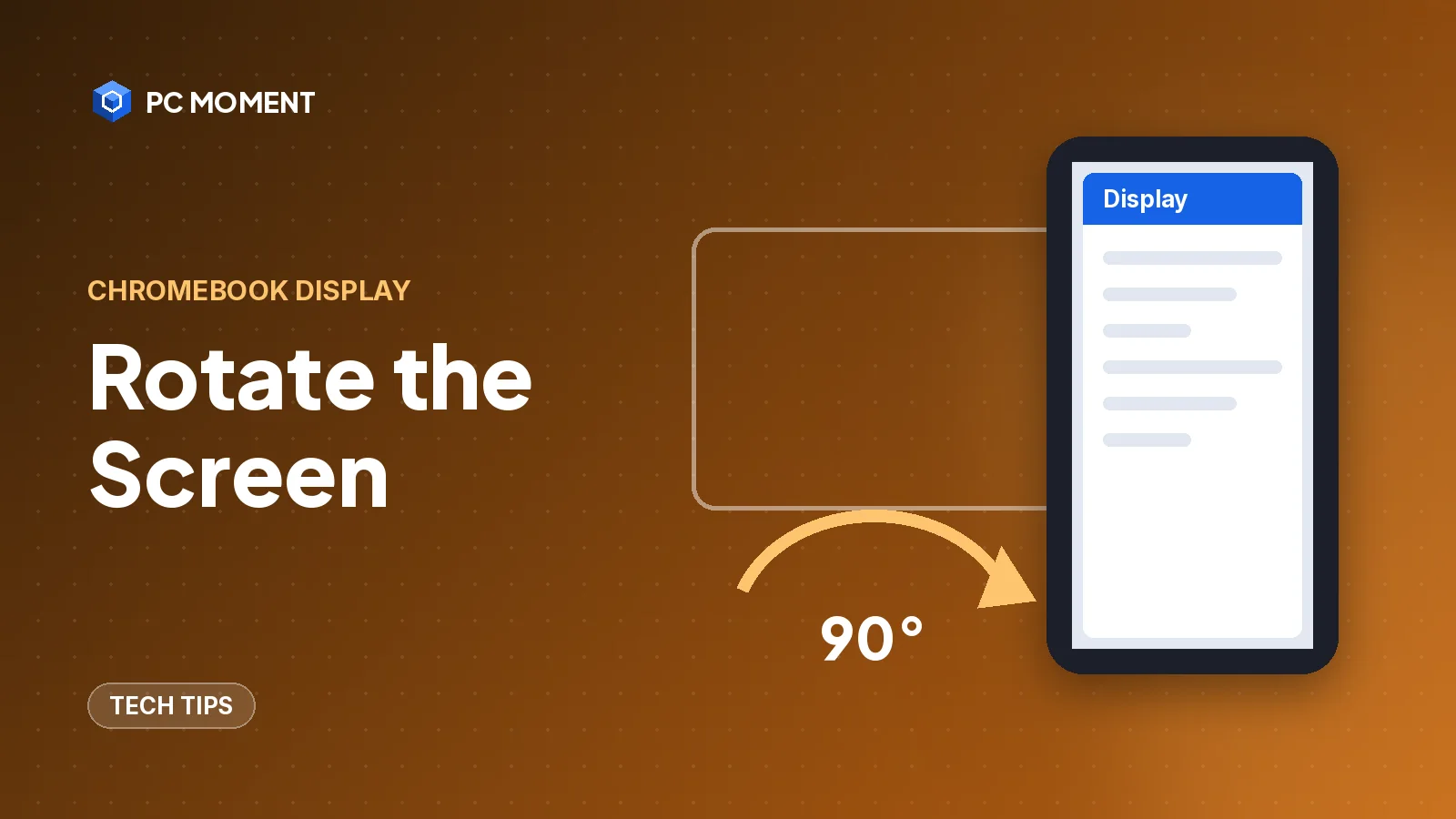
To rotate the screen on a Chromebook, press Ctrl + Shift + Refresh. Each press turns the display 90 degrees, so press it again until the screen faces the way you want. Google’s shortcut list labels the key Rotate, but it’s the circular-arrow refresh key in the top row of a Chromebook keyboard.
If you’d rather pick an exact angle, or you want to rotate only an external monitor, use the Orientation setting in Settings > Device > Displays instead. Both methods are below, along with what to do when the screen turned sideways by accident.
Why a Chromebook screen ends up sideways
Rotation is a keyboard shortcut, so it can happen by accident. Ctrl + Shift + Refresh is one key away from shortcuts people use all the time, such as Ctrl + Shift + R, which Google lists for a hard refresh of a web page. Hit the refresh key instead of R and the screen turns 90 degrees.
The fix is the same shortcut. Since each press adds another 90 degrees, a screen that’s been rotated once comes back after three more presses.
Method 1: Rotate with Ctrl + Shift + Refresh
- Hold down Ctrl and Shift.
- Press the Refresh key (the circular arrow, labeled Rotate in Google’s shortcut list).
- The screen turns 90 degrees.
- Repeat until the screen is the way you want it.
| Presses | Rotation from normal |
|---|---|
| 1 | 90 degrees |
| 2 | 180 degrees (upside down) |
| 3 | 270 degrees |
| 4 | Back to normal |
Tip: If the screen turned by accident, the quickest way back is the same shortcut. Keep pressing it rather than trying to find Settings on a sideways screen.
Check the shortcut on your own keyboard
Google’s shortcut list is written for US Chromebooks with a standard English QWERTY keyboard. To see the shortcuts for the keyboard you actually have:
- Press Ctrl + Search + S, or select the time, then Settings > Device > Keyboard and inputs > View keyboard shortcuts.
- Look for the screen rotation shortcut (Rotate screen 90 degrees in Google’s online list) and the key it uses on your model.
Method 2: Set the orientation in Settings
Settings is the better option when you want an exact angle or need to rotate one display and not the other.
- Select the time at the bottom right of the screen.
- Select Settings.
- Under Device, select Displays.
- Select Built-in Display to change the Chromebook’s own screen, or select the monitor’s name to change an external display.
- Under Orientation, choose an option.
Tip: You can also type display in the search bar at the top of Settings to jump straight to the display settings.
Rotate an external monitor (portrait mode)
A monitor turned on its side is handy for reading long documents or code. To set it up:
- Connect the monitor to your Chromebook. Google lists HDMI, DisplayPort, DVI, VGA and USB-C as connection options, sometimes with an adapter.
- Open Settings > Device > Displays.
- Select the monitor’s name at the top of the page.
- Under Orientation, choose the angle that matches how the monitor is physically turned.
While you’re there, the same page lets you change Display and text size, Resolution and refresh rate for the monitor, or select Mirror Built-in Display to show the same picture on both screens.
Note: When a display is in a vertical layout, the window snapping shortcuts change direction: Alt + [ snaps a window to the top and Alt + ] to the bottom. Our guide on how to split screen on a Chromebook explains snapping in more detail.
Other display shortcuts worth knowing
These come from Google’s Chromebook keyboard shortcut list. On a Windows or Mac keyboard, use the Windows key or Command key wherever a shortcut uses Search.
| What it does | Shortcut |
|---|---|
| Rotate screen 90 degrees | Ctrl + Shift + Refresh (Rotate) |
| Change screen resolution | Ctrl + Shift and + or - |
| Reset screen resolution to default | Ctrl + Shift + 0 |
| Move a window to the other screen | Search + Alt + M (or Launcher + Alt + M) |
| See every Chromebook shortcut | Ctrl + Search + S |
Tip: If the screen looks the wrong size rather than rotated, Ctrl + Shift + 0 resets the screen resolution to the default.
School and work Chromebooks
On a Chromebook managed by a school or company, the administrator can set the DisplayRotationDefault policy. According to Google’s Chrome Enterprise policy list, this policy:
- Rotates each display to a set orientation (0, 90, 180 or 270 degrees) on every reboot.
- Lets you change the rotation in Settings after you sign in, but changes it back at the next restart.
- Applies to both the built-in screen and external displays.
So if your managed Chromebook keeps returning to the same rotation after each restart, that’s likely the policy at work. Your IT team manages it, so ask them if you need a different default.
If it still doesn’t work
- The shortcut does nothing: Make sure you’re pressing the refresh key (the circular arrow) in the top row of the Chromebook keyboard, together with Ctrl and Shift. If it still doesn’t work, try Method 2 in Settings, which doesn’t depend on the keyboard.
- The Orientation option is missing: Check that you selected the right display at the top of the Displays page. If no monitor name appears, the monitor isn’t connected; check the cable or adapter.
- The screen is rotated and you can’t reach Settings: Keep pressing Ctrl + Shift + Refresh; four presses always bring you back to where you started.
- The rotation resets after a restart: On a school or work device, see the managed device section above.
- A rotated app or window freezes:
For more Chromebook and Windows shortcuts, see our list of computer tricks and the rest of Tech Tips.
Frequently asked questions
What is the shortcut to rotate a Chromebook screen?
Press Ctrl + Shift + Refresh. Google's shortcut list calls the key Rotate, and it's the circular-arrow refresh key in the top row. Each press turns the screen 90 degrees.
How do I get my Chromebook screen back to normal?
Keep pressing Ctrl + Shift + Refresh until the screen is the right way up, since each press turns it another 90 degrees. Or open Settings > Device > Displays and change Orientation for that display.
Can I rotate only my external monitor?
Yes. In Settings > Device > Displays, select the monitor's name instead of Built-in Display, then choose an option under Orientation. Each display has its own setting.
Why does my school Chromebook screen keep rotating back after a restart?
Your administrator may have set the DisplayRotationDefault policy. It lets you rotate the screen after signing in, but resets the rotation at every reboot. Ask your IT team if you need it changed.
Related guides
Tech Tips
How to Split Screen on Chromebook: Shortcuts, Snap Groups and Tablet Mode
Press Alt + [ or Alt + ] to snap a Chromebook window to half the screen. Here's how to drag, use Partial split, Snap Groups and split screen in tablet mode.
6 min read
Tech Tips
Task Manager on Mac: How to Use Activity Monitor and Force Quit Apps
Macs don't have Task Manager. Activity Monitor does the same job. Here's how to open it, read each tab and close frozen apps safely.
7 min read
Tech Tips
15 Computer Tricks for Windows 10 and 11 That Save Real Time
Fifteen genuinely useful Windows tricks, from clipboard history and Snap layouts to a hidden battery report, all built into Windows 10 and 11.
7 min read
Tech Tips
Command Prompt Shortcuts: History Keys, Copy and Paste, and Quick Ways to Open CMD
The Command Prompt keyboard shortcuts worth learning, the Windows Terminal keys that go with them, and fast ways to open cmd or make a desktop shortcut.
7 min read