How to Split Screen on Chromebook: Shortcuts, Snap Groups and Tablet Mode
Press Alt + [ or Alt + ] to snap a Chromebook window to half the screen. Here's how to drag, use Partial split, Snap Groups and split screen in tablet mode.
By PC MomentUpdated 6 min read
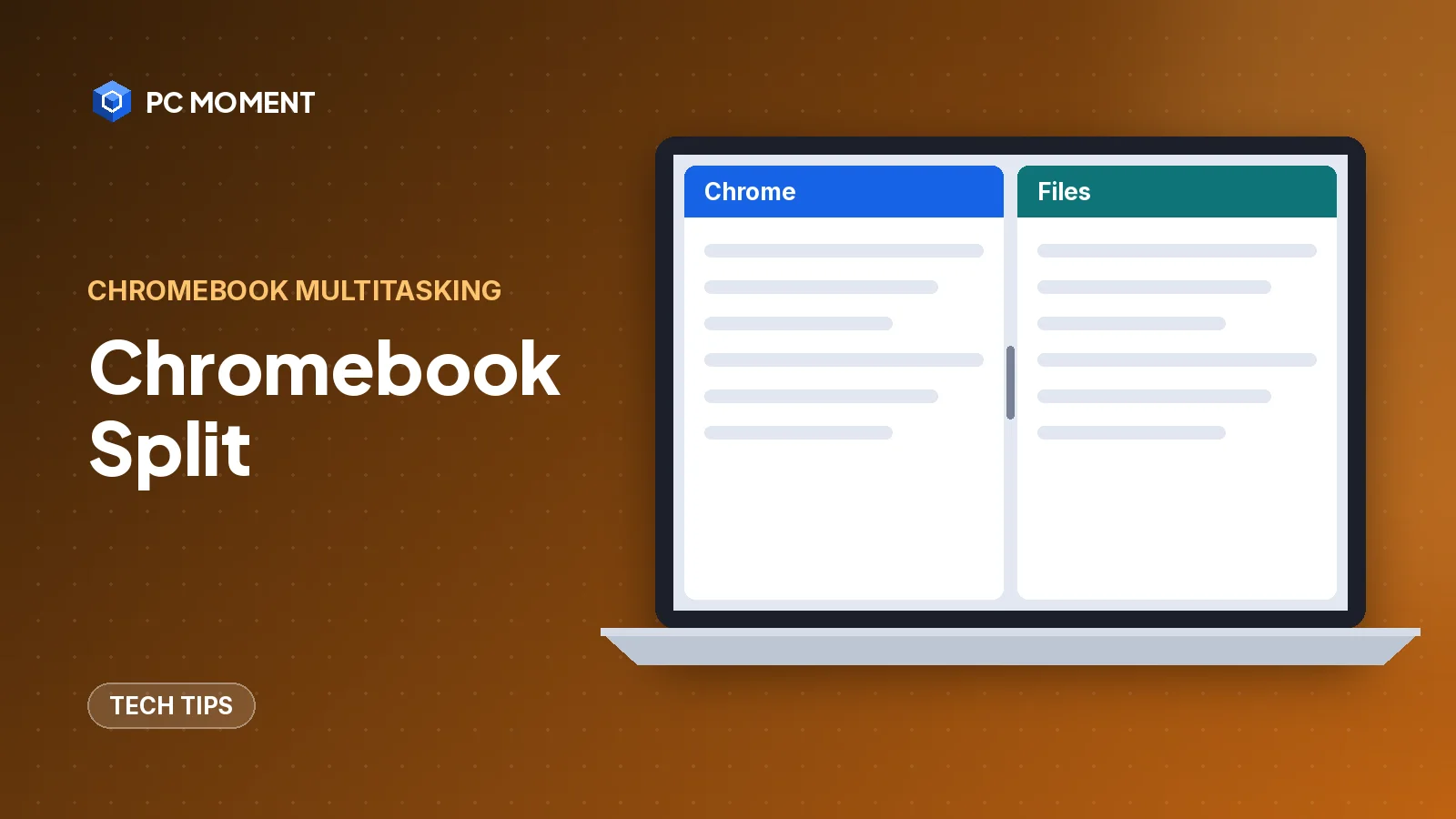
The fastest way to split the screen on a Chromebook is a keyboard shortcut: click a window and press Alt + [ to snap it to the left half, or Alt + ] to snap it to the right half. Then click a second window and snap it to the other side.
You can also drag a window to the edge of the screen, pick Split or Partial from the Maximize button, or, in tablet mode, drag apps into place with your finger. Each method is below, with the steps from Google’s Chromebook Help.
Split screen methods at a glance
| Method | How | Best for |
|---|---|---|
| Keyboard shortcut | Alt + [ (left) or Alt + ] (right) | Fastest; doesn’t create a Snap Group |
| Drag the title bar | Drag the window to the left or right edge until it highlights | Mouse or touchpad users |
| Maximize button menu | Hover over Maximize, choose Split or Partial | Uneven layouts (one big, one small window) |
| Hold Maximize and drag | Press and hold Maximize, drag to the left or right arrow | Quick snapping without the menu |
| Tablet mode | Open the overview, drag a window to one side | Convertibles and Chromebook tablets |
| Chrome split view | Ctrl + Alt + N in Chrome | Two websites in one Chrome window |
Method 1: Snap windows with Alt + [ and Alt + ]
- Click the first window you want to snap so it’s active.
- Press Alt + [ to dock it on the left half of the screen.
- Click the second window.
- Press Alt + ] to dock it on the right half.
If your screen is in a vertical (portrait) layout, the same shortcuts snap windows to the top (Alt + [) and bottom (Alt + ]) instead.
Note: Windows snapped with the keyboard shortcuts don’t form a Snap Group and don’t trigger the faster split-screen setup with window suggestions. Use one of the mouse methods below if you want those.
Method 2: Drag a window to the edge of the screen
- Select and hold the title bar (the top strip) of the window you want to snap.
- Drag it to the left or right side of the screen until that side highlights.
- Release it. The window fills half the screen.
- A list of your other open windows appears on the empty side. Select the one you want next to it.
If you don’t want to pair it with anything, select the empty area, select Skip, or press Esc.
Method 3: Use Split or Partial from the Maximize button
This is the method to use when you want one window bigger than the other.
- Hover your pointer over the Maximize/Restore button at the top right of the window.
- In the layout menu that appears, choose:
- Split to divide the screen evenly, with your window on the left or right.
- Partial to create one larger and one smaller window, with your window as either one.
- Pick a second window from the suggestion list to fill the other side.
You can also press and hold Maximize and drag toward the left or right arrow that appears.
Tip: The same layout menu has a Float option, which keeps a smaller window on top that you can move around freely. To undo it, hover over Unfloat and select Float again.
Snap Groups (ChromeOS M128 and later)
On ChromeOS version M128 and up, when you snap a window with the mouse methods above and then pick a second window from the suggestions, the two become a Snap Group. They act as a pair:
- Resize both at once: Drag the divider bar between the two windows.
- Bring the pair back to the front: Select either window, open the overview with the Show windows key or a three-finger swipe up on the touchpad, or press Alt + Tab and stop on the group.
- Replace one window: Drag another window’s title bar to the edge on the side you want to replace, or use the Maximize layout menu on the new window.
- Break the group: Maximize, minimize, make full screen or close one of the windows, or drag it out by its title bar.
Note: You can only pair windows that are on the same desk and the same display. Suggestions also don’t appear if another fully visible window is already snapped to the opposite side.
Split screen in tablet mode
On a convertible Chromebook folded into tablet mode, or a Chromebook tablet, there’s no title bar to grab. Use the overview instead:
- Swipe up from the bottom of the screen and hold to see all your open windows. (Google’s touchscreen guide also describes swiping down from the top to get the same overview.)
- Drag one window to the left or right edge of the screen.
- Tap the other window you want to use. It fills the other half.
- Drag the line in the center to change the sizes.
To remove split screen, drag that center line all the way to either side.
Split screen inside Chrome
If you only need two websites side by side, Chrome has its own split view inside a single window:
- Press Ctrl + Alt + N on a Chromebook to open split view with the active tab.
- Or right-click a tab and select Add tab to new split view, or right-click a link and select Open link in split view.
- To undo it, right-click a tab in the split view and choose Separate split view.
This splits one Chrome window, not the whole screen, so it doesn’t affect your other apps.
Turn window suggestions on or off
The list of windows that pops up after you snap one is handy, but you can switch it off:
- Select the time at the bottom right.
- Select Settings, then System preferences.
- Search for split screen.
- Under Window and desks, turn off Show window suggestions when starting split-screen.
Turn the same setting back on if the suggestions have disappeared and you want them back.
How to exit split screen
- Select Maximize on one of the snapped windows to return it to full size.
- Press the Full screen key at the top of the keyboard (or F4) for full screen, which hides tabs and the launcher.
- In tablet mode, drag the center line to one side.
If it still doesn’t work
- The shortcut does nothing: Click inside the window first so it’s the active one, then press Alt + [ or Alt + ] again.
- No suggestion list appears: You need at least 2 windows open on the current desk and display, and the suggestion setting must be on. Also check that a fully visible window isn’t already snapped to the opposite side.
- Snap Groups don’t form: Snap Groups need ChromeOS M128 or later, and the keyboard shortcuts never create them. Check your version in Settings > About ChromeOS, select Check for updates, and use the drag or Maximize methods.
- Windows are on different monitors: Move them to the same display first. Google’s tip is Search + Alt + M (or Launcher + Alt + M) to move a window between screens.
- Tablet mode won’t split: Make sure you’re dragging from the overview, not from a full-screen app.
For more shortcuts like these, see how to split screen on iPad, Windows Snap layouts and other computer tricks, and the rest of Tech Tips.
Frequently asked questions
What is the split screen shortcut on a Chromebook?
Click the window you want to move, then press Alt + [ to snap it to the left half or Alt + ] to snap it to the right half. Do the same with a second window on the other side.
How do I make one side of the split screen bigger?
Drag the divider bar between the two windows, or move the pointer to the edge of a snapped window and drag. You can also choose Partial from the Maximize button's layout menu for a larger and a smaller window.
How do I stop the window suggestions after I snap a window?
Open Settings > System preferences, search for split screen, and under Window and desks turn off Show window suggestions when starting split-screen.
How do I exit split screen on a Chromebook?
Select Maximize on one of the snapped windows. That also breaks a Snap Group, as do minimizing the window, making it full screen or closing it.
Can I split screen on a Chromebook in tablet mode?
Yes. Swipe up from the bottom and hold to see all open windows, drag one window to the left or right side, then tap the other window you want next to it.
Related guides
Tech Tips
How to Split Screen on iPad: iPadOS 26 and 27 vs. Older Split View
Put two apps side by side on iPad with the new windowed apps in iPadOS 26 and 27, or with the three-dot Split View button in iPadOS 17 and 18.
7 min read
Tech Tips
15 Computer Tricks for Windows 10 and 11 That Save Real Time
Fifteen genuinely useful Windows tricks, from clipboard history and Snap layouts to a hidden battery report, all built into Windows 10 and 11.
7 min read
Tech Tips
Windows Emoji Keyboard Shortcut: Emoji, Kaomoji, Symbols and GIFs
Press Windows key + period to open the emoji panel in Windows 10 and 11. Here's how to search it, find symbols and kaomoji, and use clipboard history.
6 min read
Tech Tips
Task Manager on Mac: How to Use Activity Monitor and Force Quit Apps
Macs don't have Task Manager. Activity Monitor does the same job. Here's how to open it, read each tab and close frozen apps safely.
7 min read