'pip' Is Not Recognized as an Internal or External Command: How to Fix It on Windows
Windows can't find pip because its folder isn't on PATH. Run py -m pip instead, then fix PATH, the app execution aliases or your virtual environment.
By PC MomentUpdated 6 min read
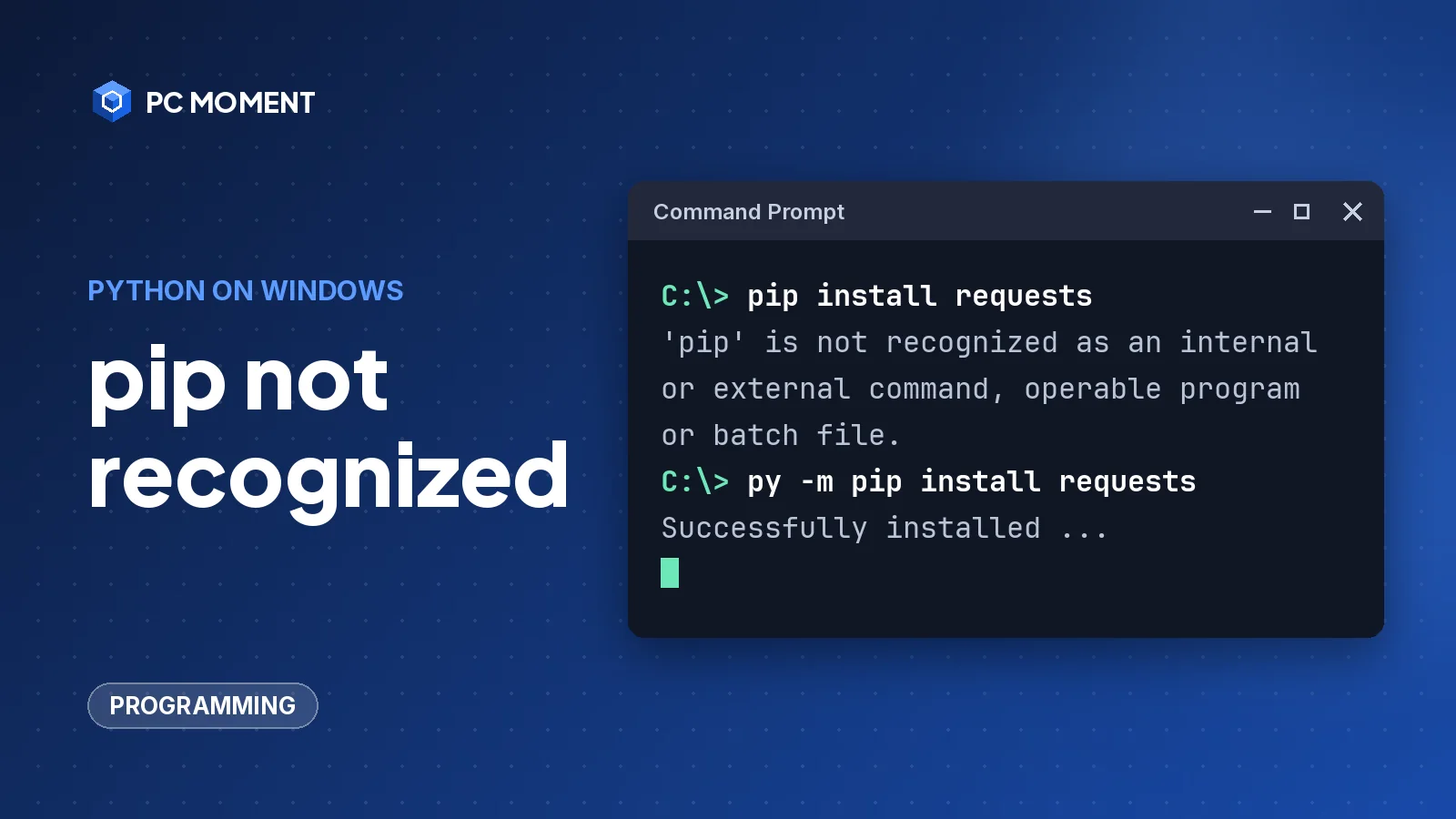
When you type pip install and Windows replies “‘pip’ is not recognized as an internal or external command, operable program or batch file”, Windows can’t find a program called pip in any folder on your PATH. Python itself is often installed and working fine. The quickest fix is to skip the pip command entirely and run py -m pip instead.
The steps below work on Windows 10 and 11, in both Command Prompt and PowerShell. PowerShell shows a differently worded message for the same problem.
What causes “pip is not recognized”?
- The Scripts folder isn’t on PATH.
pip.exelives in aScriptsfolder next to Python. If the installer didn’t add that folder to PATH, only the full path works. - The terminal was open before the install. Every program inherits its environment from the program that started it, so an old terminal still has the old PATH.
- A virtual environment isn’t active. The
pipinside.venv\Scriptsis only on PATH after you activate the environment. - The Python install manager hasn’t created the shortcut. Newer installs use global shortcuts that sometimes need a refresh.
- pip isn’t installed in that Python at all, which is rare but possible with custom installs.
| Fix | When it helps |
|---|---|
1. Use py -m pip | Always; it works without touching PATH |
| 2. Open a new terminal | You just installed Python or changed PATH |
| 3. Activate the virtual environment | You work inside a project with a .venv folder |
| 4. Refresh the install manager shortcuts | You installed Python with the Python install manager |
| 5. Check app execution aliases | python opens the Microsoft Store or isn’t found either |
| 6. Add Python to PATH | You used the classic python.org installer without the PATH option |
| 7. Reinstall pip with ensurepip | py -m pip says there’s no module named pip |
How to fix pip is not recognized
Fix 1: Run pip through Python with py -m pip
The pip user guide gives this as the Windows way to run pip:
py -m pip --versionIf it prints a pip version and the Python folder it belongs to, pip is installed and only the shortcut is missing. Use the same form for every pip command:
py -m pip install requestspy -m pip runs pip with the latest Python you have installed. If python works in your terminal, python -m pip does the same with that interpreter, and the Python docs recommend it when the pip command isn’t found.
Tip: Even after you fix PATH,
py -m pipis a good habit. When you have more than one Python installed, it makes clear which one receives the package.
If py isn’t recognized either, Python itself isn’t on PATH or isn’t installed. Continue with Fix 4 or Fix 5.
Fix 2: Close and reopen the terminal
Microsoft’s documentation explains that a child process inherits the environment variables of its parent. A Command Prompt, PowerShell or VS Code window that was open during the install keeps the PATH it started with.
- Close every terminal window, including the terminal panel in your editor.
- Open a new Command Prompt or PowerShell window.
- Run
pip --versionagain.
If you use a code editor, restart the whole editor, not just its terminal panel.
Fix 3: Activate your virtual environment
The Python docs list this first for “pip gives me a ‘command not found’ error”: have you activated a virtual environment? From your project folder, run:
.venv\Scripts\activateIn PowerShell, run the PowerShell version of the script:
.venv\Scripts\Activate.ps1Activating changes your prompt to show the environment’s name, and pip now points to the environment’s own copy. If you don’t have an environment yet, create one with python -m venv .venv first. If PowerShell refuses to run the script, the venv docs explain that you may need to allow it for your user with Set-ExecutionPolicy -ExecutionPolicy RemoteSigned -Scope CurrentUser.
Fix 4: Refresh the Python install manager shortcuts
Since Python 3.14, the Python docs recommend the Python install manager (from python.org or the Microsoft Store) instead of the classic installer. It creates global shortcuts for commands such as pip, and those shortcuts can be missing. The docs suggest this command:
py install --refreshIt rebuilds the global shortcuts. If the shortcuts folder isn’t on PATH, the command output tells you. By default that folder is %LocalAppData%\Python\bin.
To add it, click Start and search for Edit environment variables for your account, then add the folder to the Path variable for your account, as shown in Fix 6. Open a new terminal afterwards.
Fix 5: Check the app execution aliases
If typing python opens the Microsoft Store or isn’t found either, check the aliases the Python docs point to:
- Click Start and open Manage app execution aliases.
- Make sure the aliases for Python (default) are turned on. If they already are, turn them off and on again to refresh them.
- Also refresh Python (default windowed) and Python install manager if you see them.
The docs also say your PATH should contain %UserProfile%\AppData\Local\Microsoft\WindowsApps. Windows includes it by default, and if it has been removed, these shortcuts aren’t found.
Fix 6: Add Python and its Scripts folder to PATH
This applies to the classic python.org installer (deprecated since Python 3.14). Its first page has an option to add Python to PATH, which adds the install folder and its Scripts folder. If you skipped it, the Python docs say you can run the installer again, choose Modify and enable it. To reopen the installer, select the Python entry in Programs and Features and choose Uninstall/Change.
To add the folders by hand instead, first find where Python lives:
py -c "import sys; print(sys.executable)"For a “just for me” install, the default folder is %LocalAppData%\Programs\Python\PythonXY, where XY is the version, such as Python313. Then:
- Click Start and search for Edit environment variables for your account.
- Under your user variables, edit Path.
- Add the Python folder as a new entry, for example
C:\Users\you\AppData\Local\Programs\Python\Python313. - Add the
Scriptsfolder inside it as another entry, for example...\Python313\Scripts. - Save with OK, then open a new terminal.
Important: Edit the PATH entry for your account, not the System variables. The Python docs note that changing system variables needs administrator rights and that Windows puts user variables after system variables. Never delete existing PATH entries, and add each folder as its own entry.
Check that Windows can now find pip. In Command Prompt:
where pipIn PowerShell, where means something else, so type the full program name:
where.exe pipwhere searches the current folder and every folder on PATH and prints each match. No output means the Scripts folder still isn’t on PATH.
Fix 7: Reinstall pip with ensurepip
If py -m pip --version fails with “No module named pip”, pip is missing from that Python. The Packaging User Guide suggests bootstrapping it from the standard library:
py -m ensurepip --default-pipThen upgrade it to the current release, as the pip docs show:
py -m pip install --upgrade pipIf it still doesn’t work
- Check which Pythons you have.
py list(install manager) orpy --listshows every installed version. If two installs fight over PATH, the Python docs suggest removing the old one under Installed apps or using Modify to turn off its PATH options. - Check you’re in a terminal. If you see
NameErrorinstead, you typed the command at the>>>Python prompt. Typeexit()and run it in Command Prompt or PowerShell. - Use admin rights only when needed. A per-user install and your own PATH don’t need them. All-users installs and system variables do, and our guide to the elevated Command Prompt shows how to run a command as administrator.
- Get more terminal practice. Our Command Prompt shortcuts guide covers opening cmd quickly and recalling earlier commands.
Once pip works, put it to use in our Python projects for beginners: the link collector project suggests the third-party Requests package as a next step, and that’s a py -m pip install requests away. If you’re just starting, our path for how to learn Python for free covers installing Python step by step, and the Programming section has more fixes for developer errors.
Frequently asked questions
Why is pip not recognized when Python is installed?
The pip command is a small program in a Scripts folder, and Windows only finds it if that folder is on your PATH. Python can be installed and working while its Scripts folder is missing from PATH.
Should I use pip or py -m pip on Windows?
The pip user guide gives py -m pip as the Windows way to run pip, and the Python docs recommend python -m pip when the pip command isn't found. Both run pip through a specific Python, so you always install packages into the interpreter you expect.
I added Python to PATH but pip still isn't recognized. Why?
A terminal keeps the environment it had when it started, so PATH changes only show up in a terminal you open afterwards. Close every Command Prompt, PowerShell or VS Code terminal and open a new one.
Why does typing python open the Microsoft Store?
That comes from an app execution alias. Open Start, search for Manage app execution aliases and check the Python entries, or install Python so the alias points to a real interpreter.
How do I reinstall pip if it's missing?
Run py -m ensurepip --default-pip. It installs the copy of pip that ships with Python into that interpreter, without downloading anything.
Related guides
Programming
Fatal: Not a Git Repository: What It Means and How to Fix It
Git says "fatal: not a git repository" when it can't find a .git folder. Here's how to find the right folder, start a repository, and fix GIT_DIR, submodule and ownership problems.
7 min read
Programming
Could Not Load File or Assembly System.Web.Helpers: How to Fix It
Fix the System.Web.Helpers load error in ASP.NET MVC: restore the Microsoft.AspNet.WebPages package, match the binding redirect, and get the DLL into bin.
5 min read
Programming
How to Learn Python for Free: A Step-by-Step Path
A free path from zero to writing real Python: install it, pick one free course, use the official docs and build small projects.
7 min read
Programming
11 Python Projects for Beginners (With Starter Code)
Eleven small Python projects that teach real skills, from a number guessing game to a weather app, each with the modules it uses and starter code.
10 min read