How to Split Screen on iPad: iPadOS 26 and 27 vs. Older Split View
Put two apps side by side on iPad with the new windowed apps in iPadOS 26 and 27, or with the three-dot Split View button in iPadOS 17 and 18.
By PC MomentUpdated 7 min read
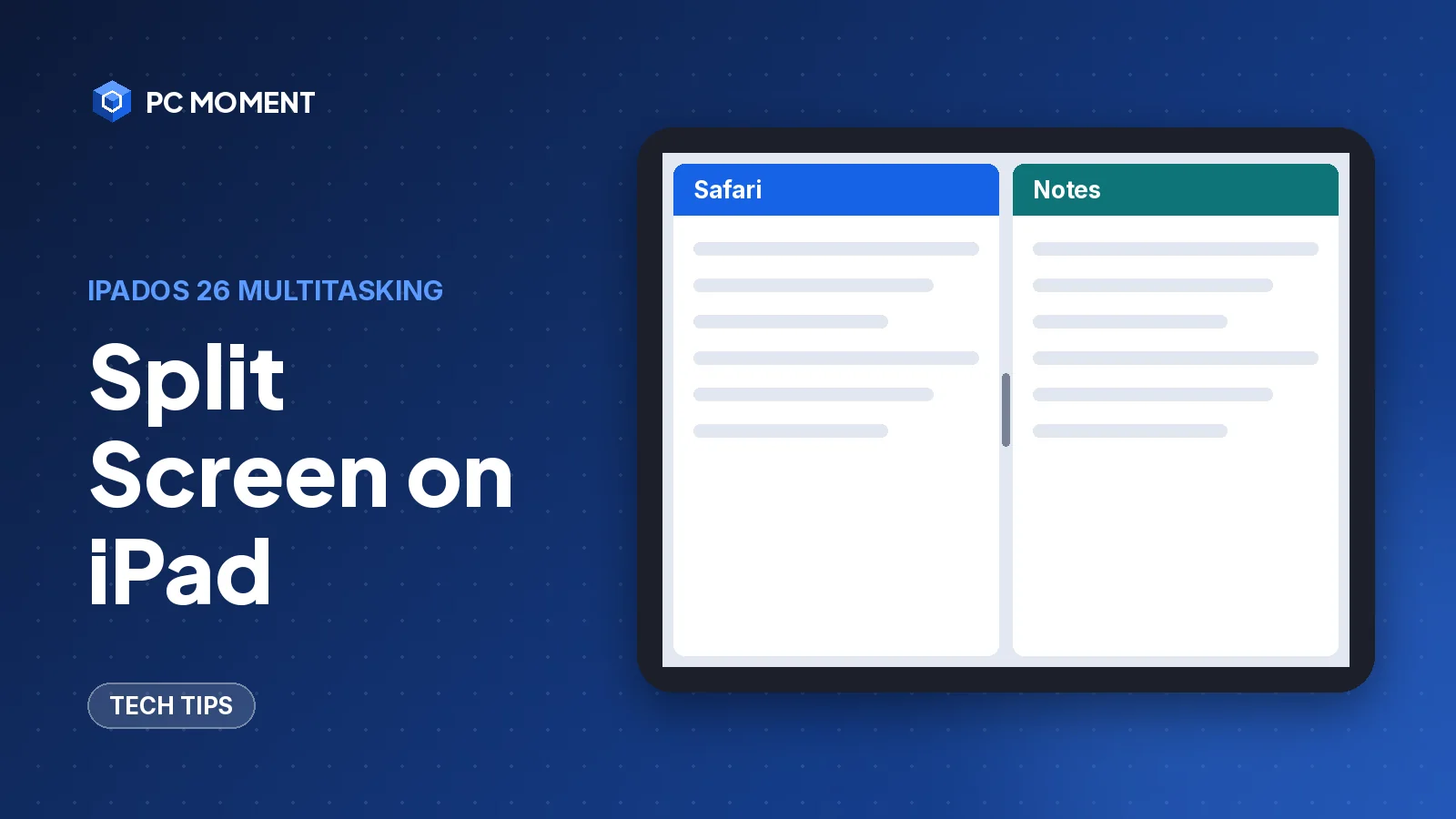
To split the screen on an iPad running iPadOS 26 or 27, turn on Windowed Apps in Settings > Multitasking & Gestures, open one app full screen, then drag a second app from the Dock onto the left or right edge. The two apps snap side by side with a divider between them.
If your iPad runs iPadOS 18 or 17, the steps are different: you use the three dots at the top of the app and the Split View button. Both methods are below, so check your version first: Settings > General > Software Update shows the version that’s installed.
Which split screen method does your iPad use?
Apple rebuilt iPad multitasking in iPadOS 26. The old Split View button and the three dots at the top of every app are gone, replaced by resizable windows with window controls in the top-left corner.
| iPadOS version | How you split the screen | Turn it on in |
|---|---|---|
| iPadOS 26 and 27 | Drag a second app to the left or right edge of a full-screen app, or tile windows | Settings > Multitasking & Gestures > Windowed Apps (or Stage Manager) |
| iPadOS 26.2 and later | Slide Over window on top of other apps | Window controls > Enter Slide Over |
| iPadOS 18 | Three dots > Split View button | Settings > Multitasking & Gestures > Split View & Slide Over |
| iPadOS 17 | Three dots > Split View button | No setting listed in Apple’s iPadOS 17 steps |
How to split screen on iPadOS 26 and 27
Step 1: Turn on Windowed Apps
- Open the Settings app.
- Scroll down and tap Multitasking & Gestures.
- Select Windowed Apps.
You can select Stage Manager instead if you prefer its layout, with recent apps in a strip on the left side of the screen. The split-screen gestures below work with windowed apps, and Apple’s iPadOS 27 guide says either option lets you work in multiple windows.
Step 2: Put two apps side by side
- Open the first app so it fills the screen.
- Drag a second app icon from the Dock, App Library or Spotlight to the left or right edge of the screen, on top of the full-screen app.
- Let go. The two apps tile side by side.
- Drag the divider in the middle to give one app more room. Both windows resize at the same time.
Tip: Want the same app twice, for example two Safari windows? Touch and hold the app icon, tap New Window, then tile the two windows. Apple names Safari and Notes as apps that support multiple windows.
Step 3 (alternative): Tile two windows you already have open
If both apps are already open as windows, you don’t need the Dock:
- Drag the first window by its top edge, hold it briefly, then swipe it quickly toward the left or right side of the screen.
- Do the same with the second window, swiping it to the other side.
Use a preset layout
Windowed apps also come with ready-made arrangements:
- Tap a window to bring it to the front.
- Touch and hold the window controls in its top-left corner.
- Choose one of the preset layouts. The open windows rearrange themselves, for example into halves or quarters.
Note: For more options for the app you’re in, swipe down from the top center of the screen to show the menu bar, tap Window, then tap Move & Resize.
Replace one of the two apps
Drag a different app icon from the Dock or Home Screen on top of the window that’s touching the left or right edge. The new app opens in that half and replaces the old one.
Add a Slide Over window (iPadOS 26.2 and later)
Slide Over keeps one small window floating on the left or right side, on top of your other apps, and you can push it off screen when you don’t need it. With windowed apps, it needs iPadOS 26.2 or later.
- Open it: Touch and hold the window controls and tap Enter Slide Over. Or drag an app from the Dock, App Library or Spotlight to the left or right edge, on top of the arrow that appears there.
- Hide it: Drag the top of the window past the edge of the screen. An arrow stays at that edge.
- Bring it back: Tap the arrow or swipe in from that edge.
- Resize it: Drag a bottom corner of the Slide Over window.
- Swap the app: Drag a different app from the Dock on top of the arrow or the Slide Over window.
- Exit it: Touch and hold the window controls and tap Exit Slide Over, or drag the window to the middle of the screen and pause.
Only one window can be in Slide Over at a time. If you choose Enter Slide Over on a second window, the first one leaves Slide Over.
How to close split screen on iPad
On iPadOS 26 and 27, do one of these:
- Drag the divider all the way to one edge. The other app fills the whole screen.
- Tap the window controls on the app you want to keep, then tap the Full Screen button.
- Double-tap the top of the window.
- To get rid of an app instead, tap the window controls and tap Close (or Minimize to tuck it away).
Tip: To minimize all your windows at once, swipe up from the bottom of the screen, then swipe up again.
How to split screen on iPadOS 18 and 17 (Split View)
Older iPadOS versions use the classic Split View. On iPadOS 18, first make sure it’s on: go to Settings > Multitasking & Gestures and, under Multitasking, turn on Split View & Slide Over.
- Open the first app.
- Tap the three dots (the multitasking button) at the top of the app.
- Tap the Split View button, then choose whether the current app goes on the left or the right.
- The app moves aside and your Home Screen and Dock appear. Tap the second app.
- Drag the divider in the middle to resize the two apps.
To replace one app, swipe down from the three dots at the top of that app, then tap a different app on the Home Screen or in the Dock.
To turn one app into Slide Over, tap the three dots at the top of that window and tap the Slide Over button.
To go back to full screen, drag the center divider to the left or right edge, or tap the three dots on the app you want to keep and tap the Enter Full Screen button.
Tip: On supported models, Settings > Display & Brightness > Display Zoom > More Space fits more content on screen, which Apple suggests when you work with apps side by side.
Gesture cheat sheet
| What you want | iPadOS 26 and 27 | iPadOS 17 and 18 |
|---|---|---|
| Start split screen | Drag an app from the Dock to the left or right edge | Three dots > Split View |
| Resize the two apps | Drag the divider | Drag the divider |
| Swap one app | Drag a new app onto the window at the edge | Swipe down from the three dots, pick a new app |
| Leave split screen | Drag the divider to one edge | Drag the divider to one edge |
| Floating extra app | Enter Slide Over (26.2 and later) | Three dots > Slide Over |
If you also use a Chromebook, the idea is the same there: snap one window to each half. Our guide on how to split screen on a Chromebook covers the Chromebook keyboard shortcuts, and on Windows the equivalent is Snap layouts and other computer tricks.
If it still doesn’t work
- Check your iPadOS version. If you’re on iPadOS 26 or 27, the three-dot steps you see in older guides won’t work. Use the drag-to-the-edge method instead.
- Check the setting. On iPadOS 26 and 27, Windowed Apps or Stage Manager must be selected in Settings > Multitasking & Gestures. On iPadOS 18, Split View & Slide Over must be on.
- Slide Over is missing. It needs iPadOS 26.2 or later with windowed apps. Update in Settings > General > Software Update.
- You can’t find the window controls. If an app is full screen, swipe down from the top of the screen to show the menu bar and its controls.
- The app won’t open a second window. Not every app supports multiple windows. Try the same steps with Safari or Notes to confirm the gesture is right.
For more guides like this one, browse Tech Tips.
Frequently asked questions
Why can't I find Split View on my iPad?
iPadOS 26 replaced the old Split View button with windowed apps. Go to Settings > Multitasking & Gestures, select Windowed Apps, then drag a second app from the Dock to the left or right edge of a full-screen app.
Where did the three dots at the top of iPad apps go?
In iPadOS 26 and later, the three-dot multitasking button is gone. Windows have window controls in the top-left corner instead; touch and hold them to see layout options and Enter Slide Over.
How do I get out of split screen on iPad?
Drag the divider between the two apps all the way to one edge of the screen. The app you keep fills the screen. On iPadOS 18 you can also tap the three dots on the app you want and tap the full-screen button.
Does Slide Over still exist on iPad?
Yes. With windowed apps it needs iPadOS 26.2 or later. Touch and hold the window controls and tap Enter Slide Over, or drag an app onto the arrow at the left or right edge.
Can I split the screen between two windows of the same app?
Yes, in apps that support multiple windows, such as Safari and Notes. Touch and hold the app icon, tap New Window, then tile the two windows side by side like any other pair.
Related guides
Tech Tips
How to Split Screen on Chromebook: Shortcuts, Snap Groups and Tablet Mode
Press Alt + [ or Alt + ] to snap a Chromebook window to half the screen. Here's how to drag, use Partial split, Snap Groups and split screen in tablet mode.
6 min read

Tech Tips
15 Computer Tricks for Windows 10 and 11 That Save Real Time
Fifteen genuinely useful Windows tricks, from clipboard history and Snap layouts to a hidden battery report, all built into Windows 10 and 11.
7 min read
Tech Tips
Task Manager on Mac: How to Use Activity Monitor and Force Quit Apps
Macs don't have Task Manager. Activity Monitor does the same job. Here's how to open it, read each tab and close frozen apps safely.
7 min read

Tech Tips
How to Get Into BIOS on Windows 11 (Settings, Command and Boot Keys)
Open BIOS/UEFI on Windows 11 three ways: from Settings, with one command, or with your PC maker's boot key. Plus a fix for when fast startup gets in the way.
6 min read