How to See Clipboard History on Windows, Mac, iPhone and Android
Press Windows key + V to see clipboard history on Windows. Here's how to turn it on, pin and clear items, sync it, and what Mac, iPhone and Android offer.
By PC MomentUpdated 6 min read
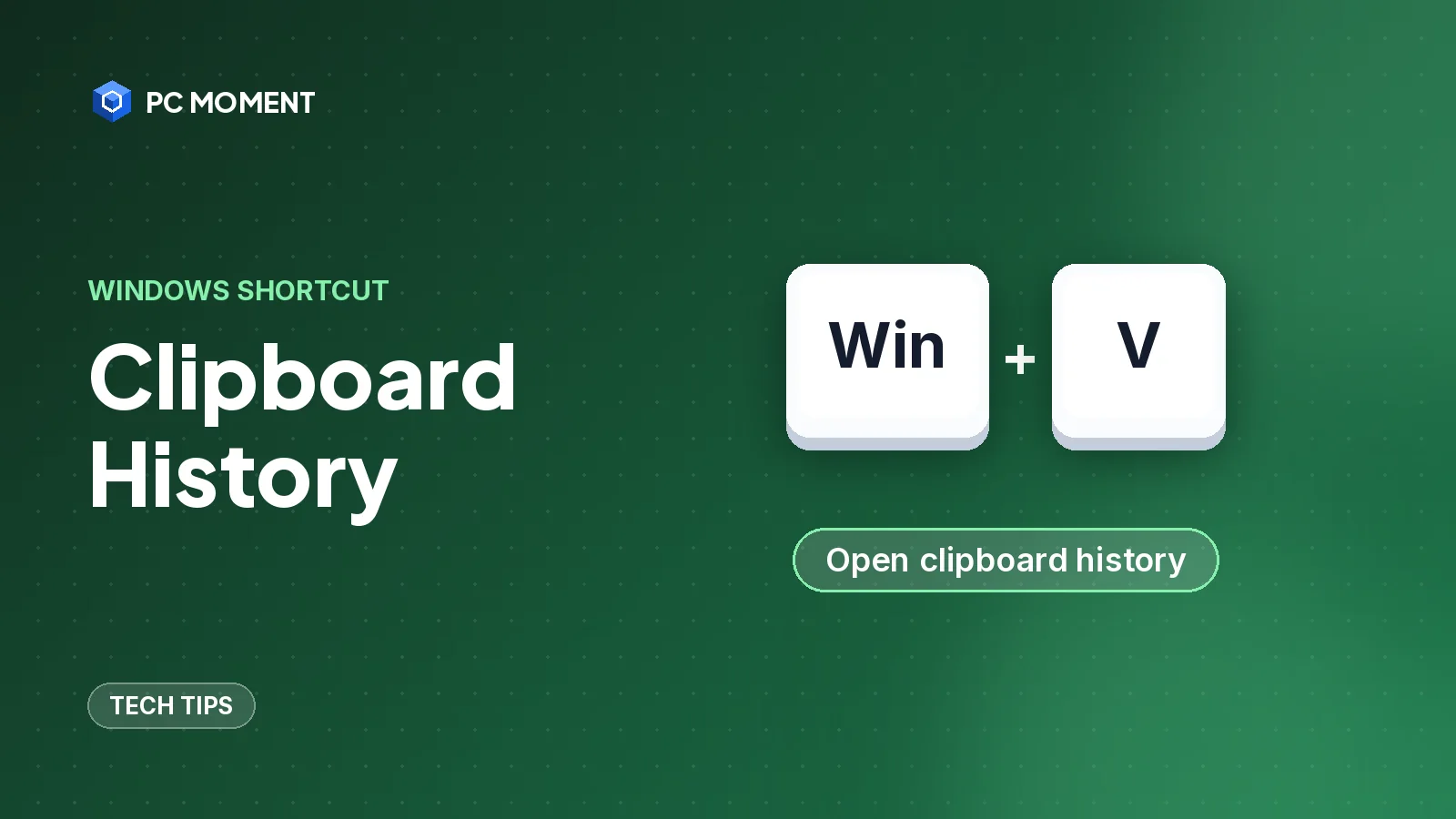
To see your clipboard history on Windows 10 or 11, press Windows key + V. If it’s the first time, select Turn on; from then on, Windows keeps a list of what you copy and you can paste any item, not just the last one. Macs running current macOS have a Clipboard view in Spotlight, and Android phones with Gboard have one in the keyboard.
Normally the clipboard holds a single item: copy something new and the old one is gone. Clipboard history changes that, but only from the moment it’s switched on, so nothing you copied earlier can be recovered.
Clipboard history at a glance
| Device | How to see it | Built in? |
|---|---|---|
| Windows 11 and 10 | Windows key + V | Yes, after you turn it on |
| Mac (current macOS) | Command-Space, then Command-4 | Yes, in Spotlight |
| Android with Gboard | Clipboard button at the top of the keyboard | Yes, in Gboard |
| iPhone and iPad | No history list | No; only the last copied item |
How to turn on clipboard history in Windows
You have two ways to switch it on. Both work on Windows 10 and Windows 11.
From the shortcut:
- Press Windows key + V.
- Select Turn on.
From Settings:
- Select Start > Settings > System > Clipboard.
- Set Clipboard history to On.
Microsoft notes that clipboard history isn’t on by default, which is why the shortcut does nothing useful the first time.
How to see and paste from clipboard history
- Click where you want to paste, such as a document, email or chat box.
- Press Windows key + V. The clipboard panel opens on top of your app.
- Select the item you want. Windows pastes it where your cursor was.
You can repeat this to paste several older items one after another. Ctrl + V still pastes only the most recent item.
Tip: On Windows 11, clipboard history is also a section of the emoji panel, so Windows key + period gets you emoji, GIFs and your recent copies in one place. See our Windows emoji keyboard shortcut guide for the rest of that panel.
What clipboard history keeps
According to Microsoft:
- It holds up to 25 copied entries. When the list is full, older items are removed automatically, unless they’re pinned.
- Each item can be up to 4 MB.
- It supports text, HTML and bitmap images. That includes screenshots: when you take a screenshot on Windows 11 with a shortcut that copies to the clipboard, the image shows up in the list.
- It’s cleared every time you restart your PC, except for pinned items.
Pin items you use often
Pinned items stay in the list after a restart and aren’t pushed out when you copy more than 25 things. Good candidates are an email signature, a shipping address or a snippet you paste every day.
- Press Windows key + V.
- Find the item and select the … (more options) button next to it.
- Select the pin option.
Clear clipboard history
Important: Clipboard history keeps everything you copy, including passwords and account numbers. Clear it after copying anything sensitive, especially on a shared PC.
Delete one item:
- Press Windows key + V.
- Select … next to the item.
- Select Delete.
Delete everything except pinned items:
- On Windows 11, press Windows key + V and select Clear all at the top of the panel.
- Or go to Start > Settings > System > Clipboard and select Clear under Clear clipboard data.
Clearing from Settings removes unpinned items from your device and from the cloud if you sync.
Sync clipboard history between PCs
If you sign in to several Windows PCs with the same Microsoft account or work account, you can copy on one and paste on another.
- Select Start > Settings > System > Clipboard.
- Turn on Clipboard history across your devices (on Windows 10 it’s called Sync across devices).
- On Windows 11, choose whether to sync text automatically or manually. With manual sync, you select the sync button on each item you want to send.
Do this on every PC, using the same account on each. On a work computer, check with IT before turning on sync, because it sends what you copy to the cloud.
How to see clipboard history on a Mac
On current macOS (Apple’s guide covers macOS Tahoe 26 and later), Spotlight has a Clipboard view:
- Press Command-Space to open Spotlight.
- Press Command-4, or click the Clipboard button to the right of the search field.
- The first time, macOS may ask you to allow Clipboard results in Spotlight. Apple warns that sensitive information may appear there.
- Type to search your history. To reuse an item, click its copy button (or select it and press Command-C), then paste with Command-V.
To erase the list, click the More button to the right of the search field and choose Clear History.
On older versions of macOS, Apple doesn’t document a built-in clipboard history, so you only have the last item you copied.
iPhone and Android
iPhone and iPad: Apple’s iPhone User Guide covers cut, copy and paste, plus Universal Clipboard for pasting between your iPhone, iPad and Mac, but it doesn’t describe a clipboard history list. You can paste only the last thing you copied.
Android with Gboard: Google’s keyboard keeps recent copies.
- Tap a text field so the keyboard opens.
- At the top of the keyboard, tap Clipboard.
- Tap the item you want to paste.
To keep an item, touch and hold it in the clipboard and tap Pin; it moves to the Pinned section. Google says the clipboard clears your history shortly after you last use it, but pinned text isn’t cleared. Other Android keyboards work differently, so check your keyboard’s help pages if you don’t use Gboard.
If clipboard history isn’t working
- Windows key + V does nothing. Go to Settings > System > Clipboard and make sure Clipboard history is On. On a work PC managed by IT, ask them if you can’t change it.
- The list is empty. History is cleared on restart, and it only holds what you copied after turning it on. Pin anything you need to keep.
- An item didn’t appear. Items over 4 MB aren’t saved, and only text, HTML and bitmap images are supported.
- Items vanish. The list keeps 25 entries; older unpinned ones are removed as you copy more.
- Sync doesn’t work. Make sure every PC uses the same Microsoft or work account and has the sync setting on. On Windows 11, check whether you chose manual sync.
- Copy and paste fails in Command Prompt. That’s a different problem; our Command Prompt shortcuts guide covers how copy and paste work there.
For more time-savers like this one, see our computer tricks for Windows 10 and 11, or browse all Tech Tips.
Frequently asked questions
How do I see my clipboard history on Windows 11?
Press Windows key + V. The first time, select Turn on. After that, the same shortcut shows a list of the items you've copied, and you select one to paste it.
How many items does Windows clipboard history keep?
Up to 25 copied entries, each up to 4 MB. Older items are removed automatically to make room, unless you've pinned them.
Why is my clipboard history empty after a restart?
Windows clears clipboard history every time you restart the PC. Only pinned items are kept.
Can I see clipboard history on a Mac?
On current macOS, Apple documents a Clipboard view in Spotlight: press Command-Space, then Command-4 or click the Clipboard button. Older Mac versions don't have a built-in history.
Can I see things I copied before turning clipboard history on?
No. Windows only starts keeping a list once clipboard history is on. Before that, the clipboard holds just the last item you copied.
Related guides
Tech Tips
Windows Emoji Keyboard Shortcut: Emoji, Kaomoji, Symbols and GIFs
Press Windows key + period to open the emoji panel in Windows 10 and 11. Here's how to search it, find symbols and kaomoji, and use clipboard history.
6 min read

Tech Tips
15 Computer Tricks for Windows 10 and 11 That Save Real Time
Fifteen genuinely useful Windows tricks, from clipboard history and Snap layouts to a hidden battery report, all built into Windows 10 and 11.
7 min read
Tech Tips
How to Print Screen on Windows 11: Every Way to Take a Screenshot
Every way to screenshot on Windows 11, from the Print Screen key to Snipping Tool and Game Bar, plus where each one saves your image.
7 min read
Tech Tips
Task Manager on Mac: How to Use Activity Monitor and Force Quit Apps
Macs don't have Task Manager. Activity Monitor does the same job. Here's how to open it, read each tab and close frozen apps safely.
7 min read